
When you log in to Business Wire Connect, click Dashboard in the top left. This guide covers the Dashboard’s key features and functionality.
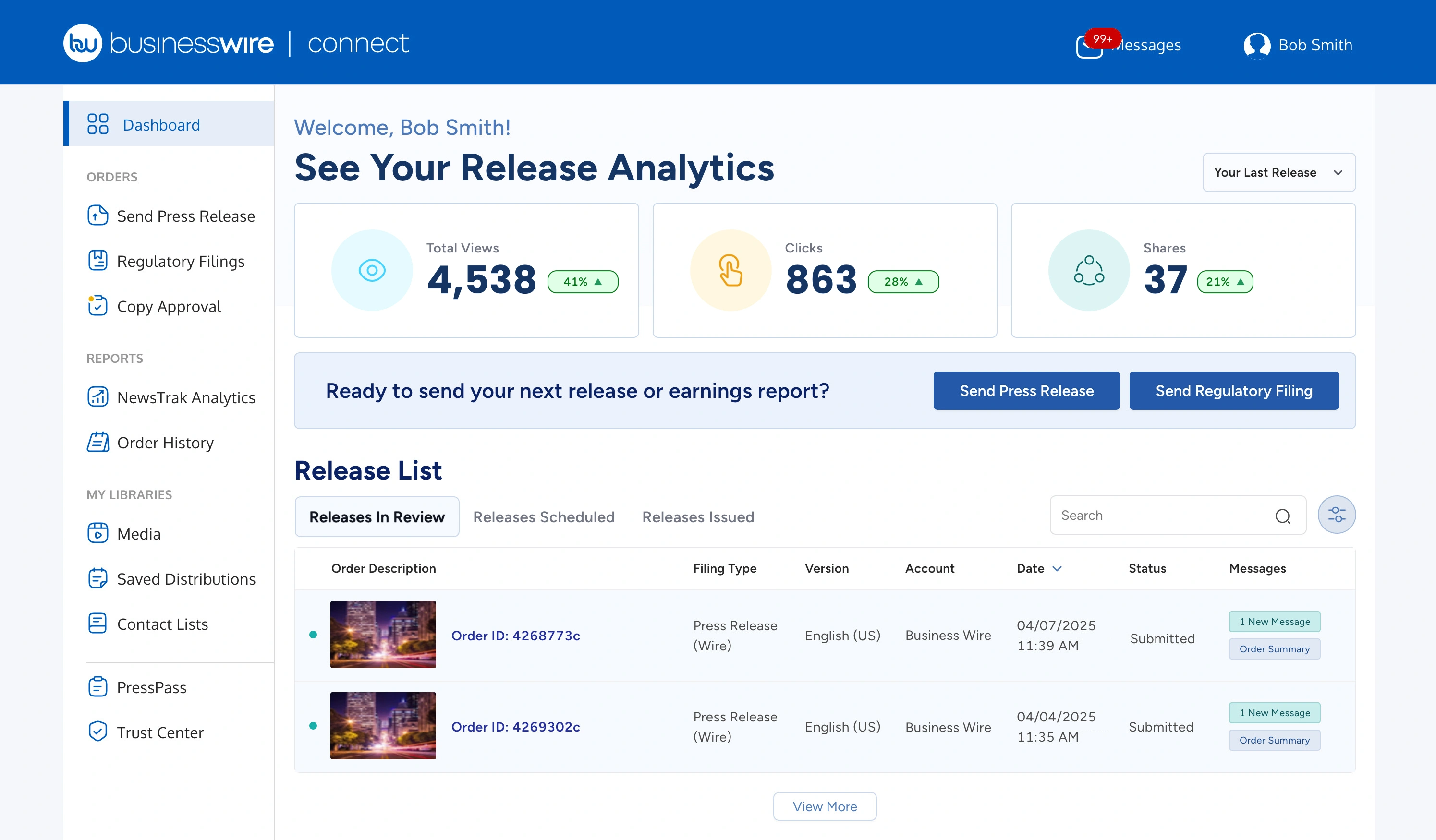
To start a new press release or regulatory filing order, click “Send Press Release” or “Send Regulatory Filing.”

Analytics Snapshot
Views, Clicks, and Shares performance data is visible at the top of the dashboard.

- While in-depth reporting remains available in Reports (click NewsTrak Analytics on the left side navigation), the dashboard display provides a quick snapshot.
- The default view is set to “Last Order”, displaying metrics for your most recent release. You can select “Last 30 Days” from the drop-down menu to view aggregate results of releases from the past month.
- The "Last 30 Days" option will display zero results until 30 days’ worth of data has been accumulated. If no activity has taken place within the last 30 days, no data will be displayed.
- Trending percentages vary when viewing “Last Order” or “Last 30 Days” data. If “Last Order” is selected, the percentage will show a change since the last release. If “Last 30 Days” is selected, the percentage will display the change in results compared to the previous 30 days.
Release List Table
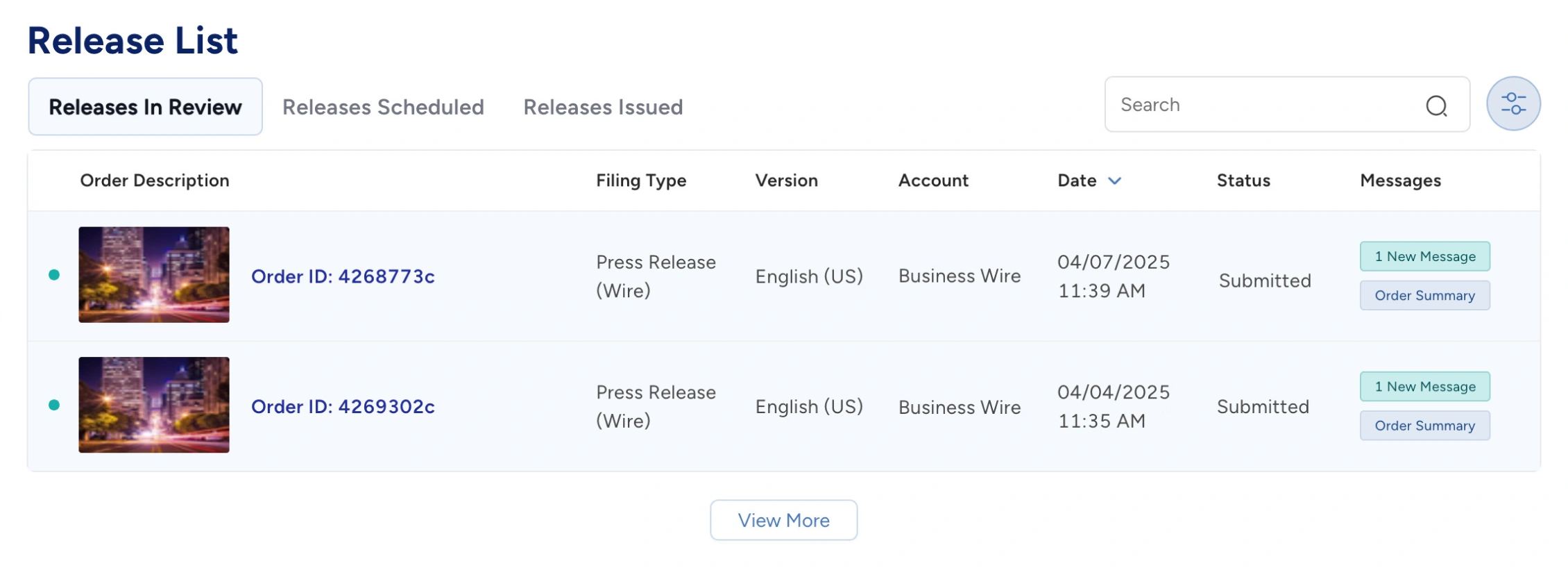
All orders are viewable in a table beneath the Analytics Snapshot.
The Release List Table includes three tabs, organizing your orders by progress stage:
- Releases In Review: Any orders that are currently still in review by our editorial team and have not yet been scheduled.
- Releases Scheduled: Any orders that have officially been scheduled for release.
- Releases Issued: Any releases that have already been published and are live on BusinessWire.com.
By default, orders in all three tabs are sorted by those that have been most recently updated. The header row of the table can be clicked to organize orders in an ascending or descending view.
Order Description
- The Order Description displays your Order ID and primary image/company logo (when applicable). The Order ID is linked to the order’s Order Summary page.
- If your order contains photos, graphics, or other multimedia, the primary release image or logo when submitted will be displayed.
- If there is no primary image in the release, then the company logo will be displayed. No image will be displayed if the order does not have a primary image or logo.
Filing Type
Filing Type identifies the type of order placed. Below are the release types that may appear in this space.
- Press Release (Wire): Normal order tunnel release; used for wire transmissions
- Press Release (Fax/Email): Generally used for fax/email-only or manual transmissions
- SEDAR: SEDAR filing
- European Disclosure: European disclosure version
- FCA: UK Regulatory or Ireland Disclosure version
Version
Under Version, you’ll see the issuing language for your release.
- For multi-language orders, some versions may be released before others. In this case, released versions are located under the Release Issued tab, and those yet to be released will either be in the Releases In Review tab or Releases Scheduled tab.
List of all values that can appear under Version in the Order Table:
| AMF Package | Fax | Nasdaq Nordic Package | EURODISC Danish |
| Chinese (Simplified) | Finnish | Norwegian | EURODISC Dutch |
| Chinese (Traditional) | French (Canada) | Polish | EURODISC Email |
| Czech | French (France) | Portuguese (Brazil) | EURODISC English (US) |
| Danish | German | Portuguese (Portugal) | EURODISC Fax |
| Dutch | Hungarian | SEDAR | EURODISC Finnish |
| Italian | Spanish (Americas) | EURODISC French (France) | |
| English (UK) | Japanese | Spanish (Spain) | EURODISC German |
| English (US) | Latvian | Swedish | Custom Value (manually entered by editorial) |
| Estonian | Lithuanian | UK Regulatory |
Account
Only visible to those with multiple accounts, the Account column identifies the account per order. Filter to find orders and releases for the account you want to view details for.
Date
The Date column displays the most recent date and time the order was updated or released (depending on status).
Status
The Status – or which part of the workflow the order is in – of each order is indicated in this section. Below is a list of the status terms and definitions.
- Submitted: Status after an order is created. Hyperlinked to the Order Summary.
- Ready for Approval: Editorial has prepped the release and returned it for approval or rejection. Hyperlinked to Order Copy Approval.
- Ready for Approval with Revision: Editorial has revised a previously rejected or approved release and returned it for further review. Hyperlinked to Order Copy Approval.
- Approved: The order has been approved. Hyperlinked to Order Copy Approval.
- Rejected: The order has been rejected. Hyperlinked to Order Copy Approval.
- Hold for Call: Editorial is holding the release pending further instructions. Hyperlinked to the Order Summary.
- Scheduled: The order is scheduled to be released and will now appear in the Releases Scheduled tab. Hyperlinked to the Order Summary.
- Issued: The order has been sent and will now appear in the Release Issued tab. Hyperlinked to the Order Summary.
Messages
The Messages column includes a button indicating any unread messages.
- Clicking this button takes you to the messages screen for the specified order.
- Within this column, you will also see a button to access the Order Summary for Release In Review or Releases Scheduled, which appears whether or not there are any new messages for the order.
- If you are viewing the Releases Issued tab, you will see a button to View Report, which allows you to quickly navigate to the individual NewsTrak Report for the order.
Searching & Filtering
Searching Orders

Orders can be searched for by using the search bar.
- The search function locates orders based on Order ID or headline text.
- Search results are displayed within any of the three tabs where the search terms yielded matches.
Filtering Orders
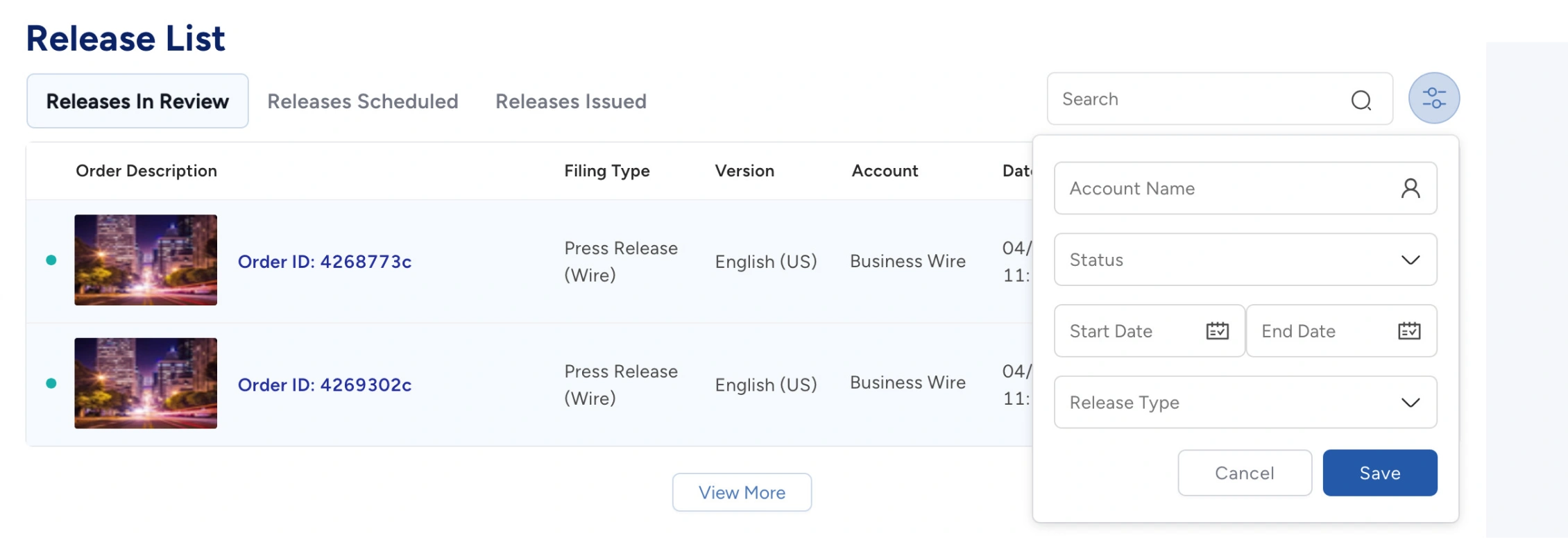
Orders can be filtered by clicking the filter icon next to the search bar.
- To refine the orders listed (under any of the tabs), use the Status and/or Release Type drop-down menus or use the Start Date and End Date boxes to select a date range.
- The Account Name field can be used to filter per account. For those with only one account, this field will display the account name.
- Saved filter selections are displayed below the tabs. To remove a saved filter, click the X to the right of each filter.