1. Log in to Your Business Wire Connect Account
If you have a Business Wire Account, log in now.
If you need access to your organization’s account, please contact your internal account administrator. If your organization does not have an active Business Wire account, sign up.
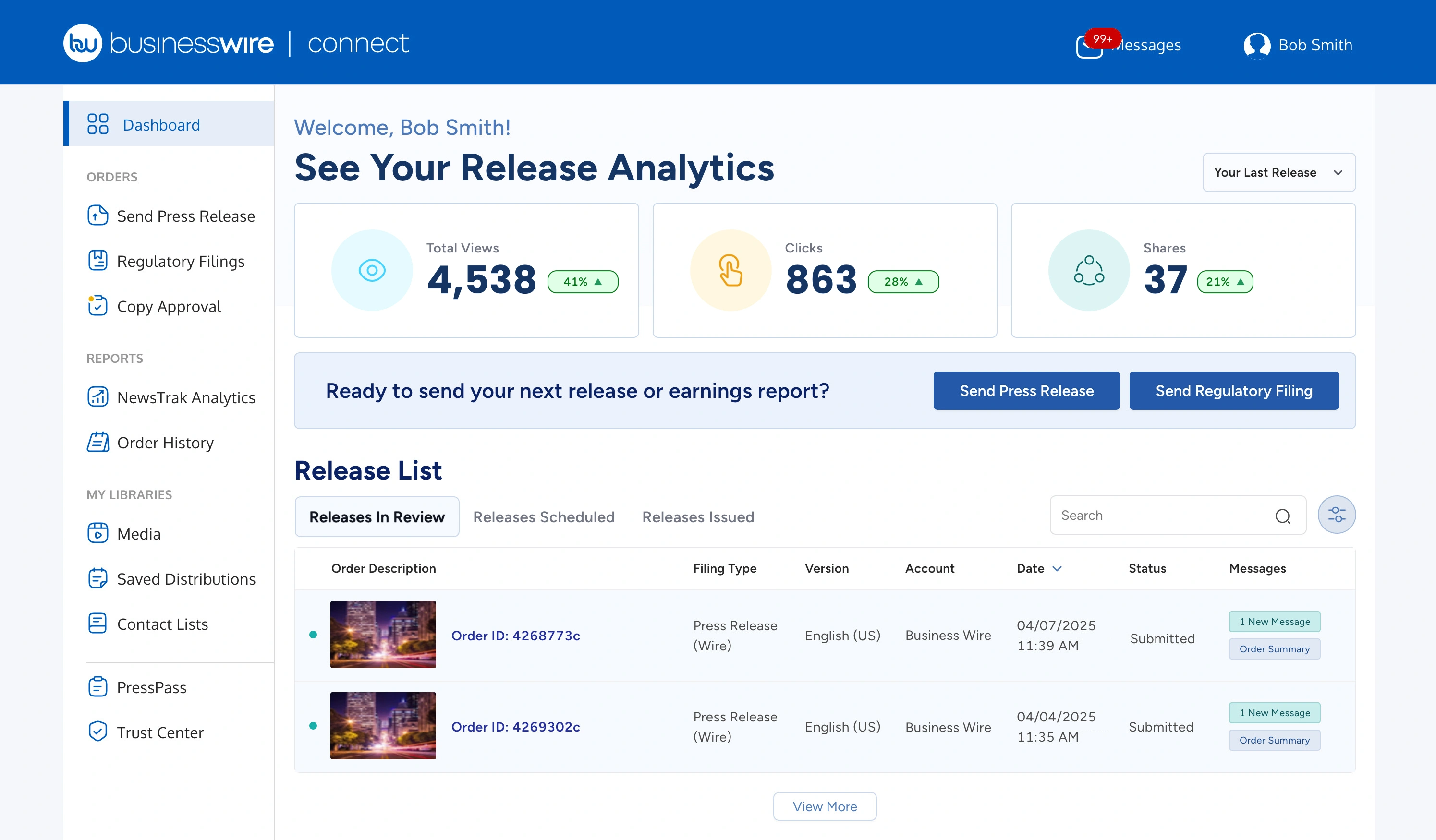
Learn about Business Wire Connect’s dashboard and how to easily search your orders.
2. Start Your Order
From the dashboard, click "Send a Press Release."
3. Schedule
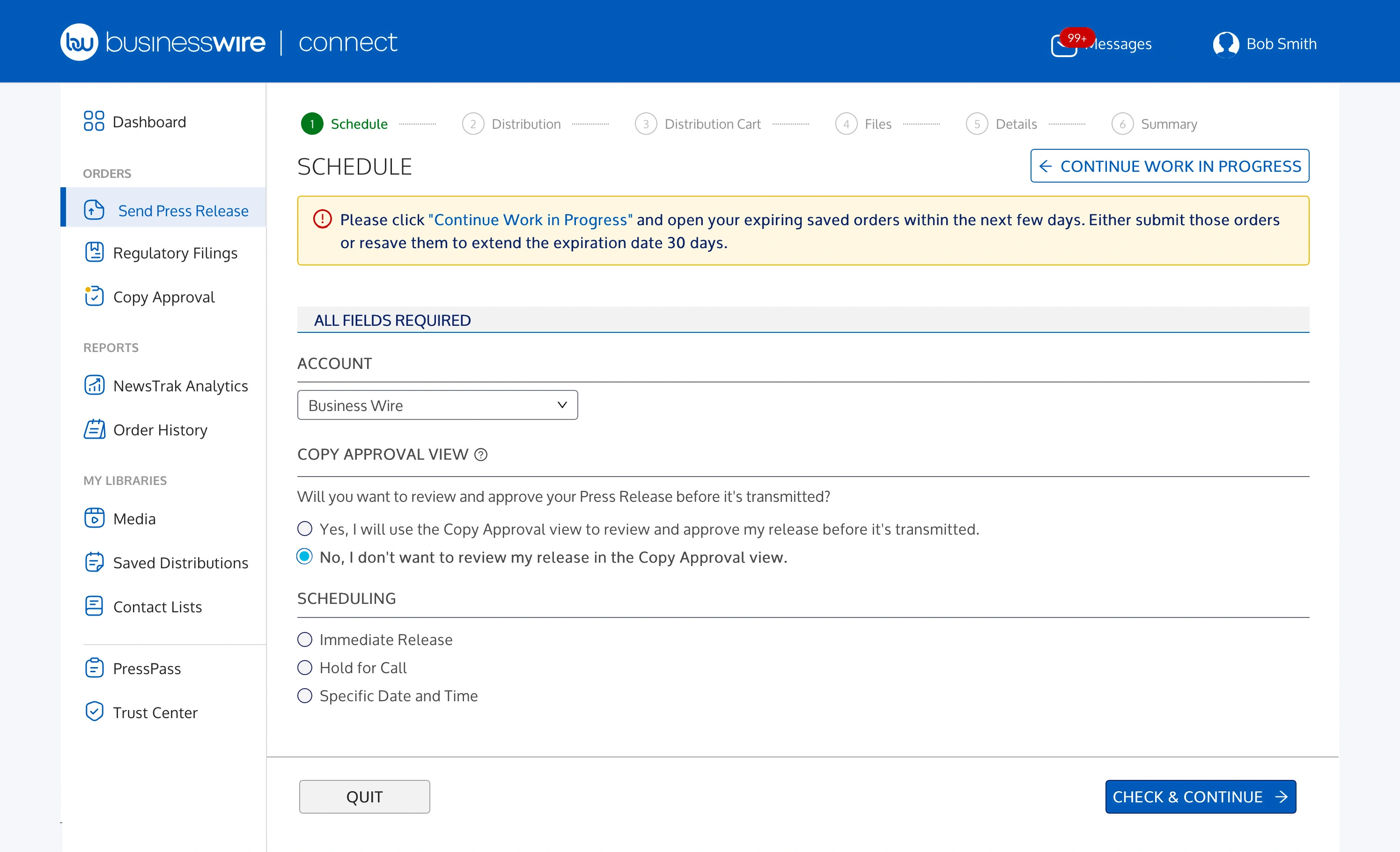
Use the drop-down menu to select the appropriate account. To add a new account, contact your Account Administrator.
Select "Yes" under Copy Approval View to review and approve your press release within Business Wire Connect before it is distributed. Your release will not be issued until approval is received and distribution time is confirmed.
Select timing for your release’s distribution:
- Immediate Release: Select for turnaround as soon as possible.
- Hold for Call: Request that we prepare your release and hold it until we hear from you with a time to distribute.
- Specific Date and Time: Specify distribution date and time.
4. Distribution
Business Wire’s extensive media lists ensure your release reaches all relevant parties.
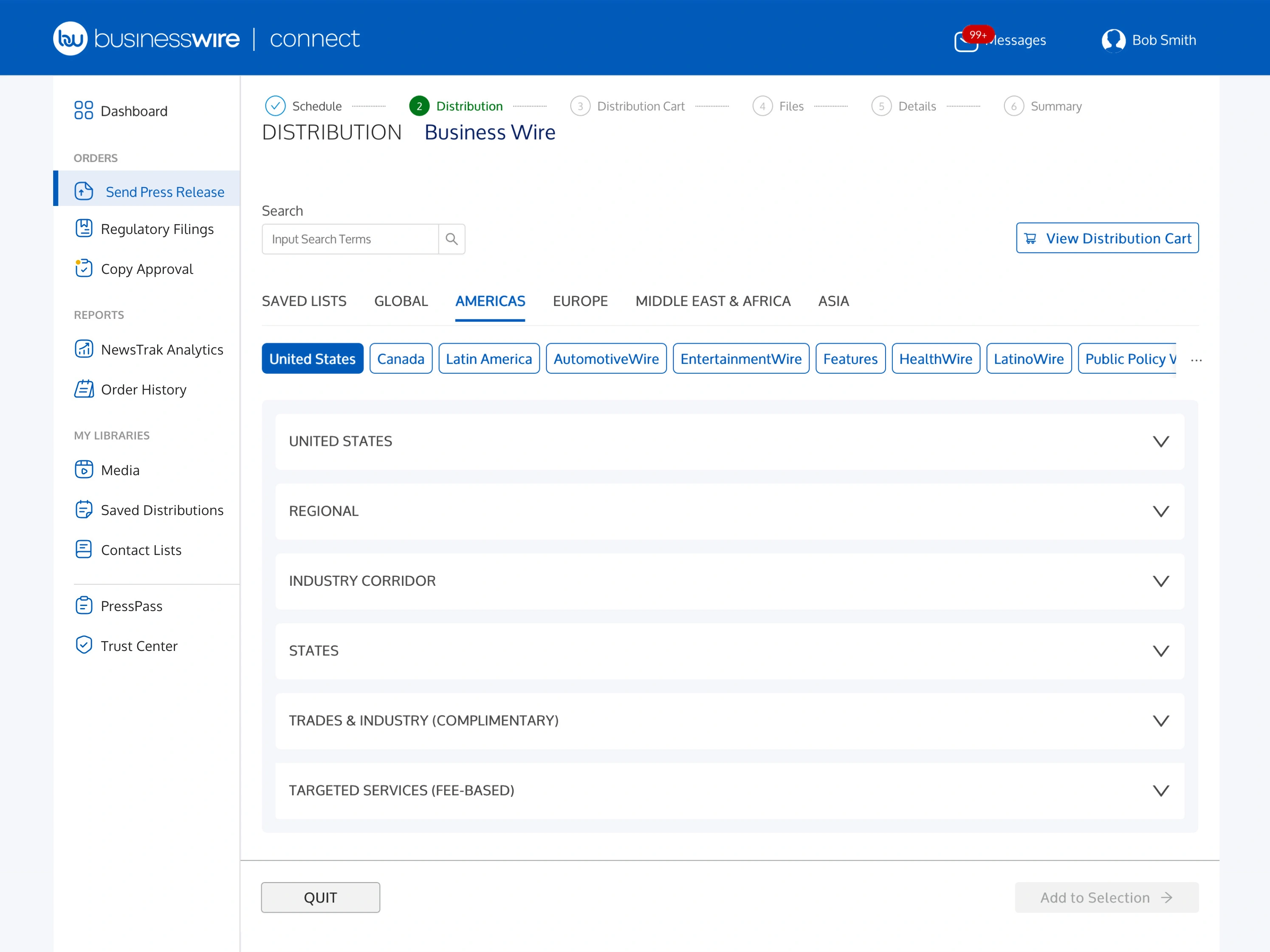
Use the search feature or browse our media lists to find the geographic, industry, and demographic audiences you want to reach. Choose your preferred options by checking the box next to the media list of interest.
Click Saved Lists to view previously saved circuits, trade media, email and/or fax lists to include in your current order or follow the below.
For step-by-step instructions to create a new email or fax list or modify an existing list, go here.
To select a new distribution:
Scroll through the geographic tabs to view and select news media, industry trades, and specialty distributions available in these markets.
- Geographic Lists: Navigate through the remaining tabs to view and select your preferred geographic news media audiences, industry trades, and targeted circuits. Once you have selected your geographic regions, choose relevant trade categories and specialty circuits.
- Trades & Industry: A key component of our distribution offering is the ability to reach industry trade media. We offer hundreds of relevant trade categories; select the ones relevant to your news.
- Targeted Services: Choose a targeted circuit to increase impact within highly focused audiences such as CSR/ESG, VentureBeat, LatinoWire, and more.
Please note: U.S. and Canadian geographic circuits include industry trade media at no additional charge. Many international selections also include trade press within that geographic market.
If the circuit you are looking for does not appear in this list, please include the list information in the Special Instructions field located on the Details Page.
To view your selections at any time, click "View Distribution Cart."
Once done, select "Add to Selection."
5. Distribution Cart
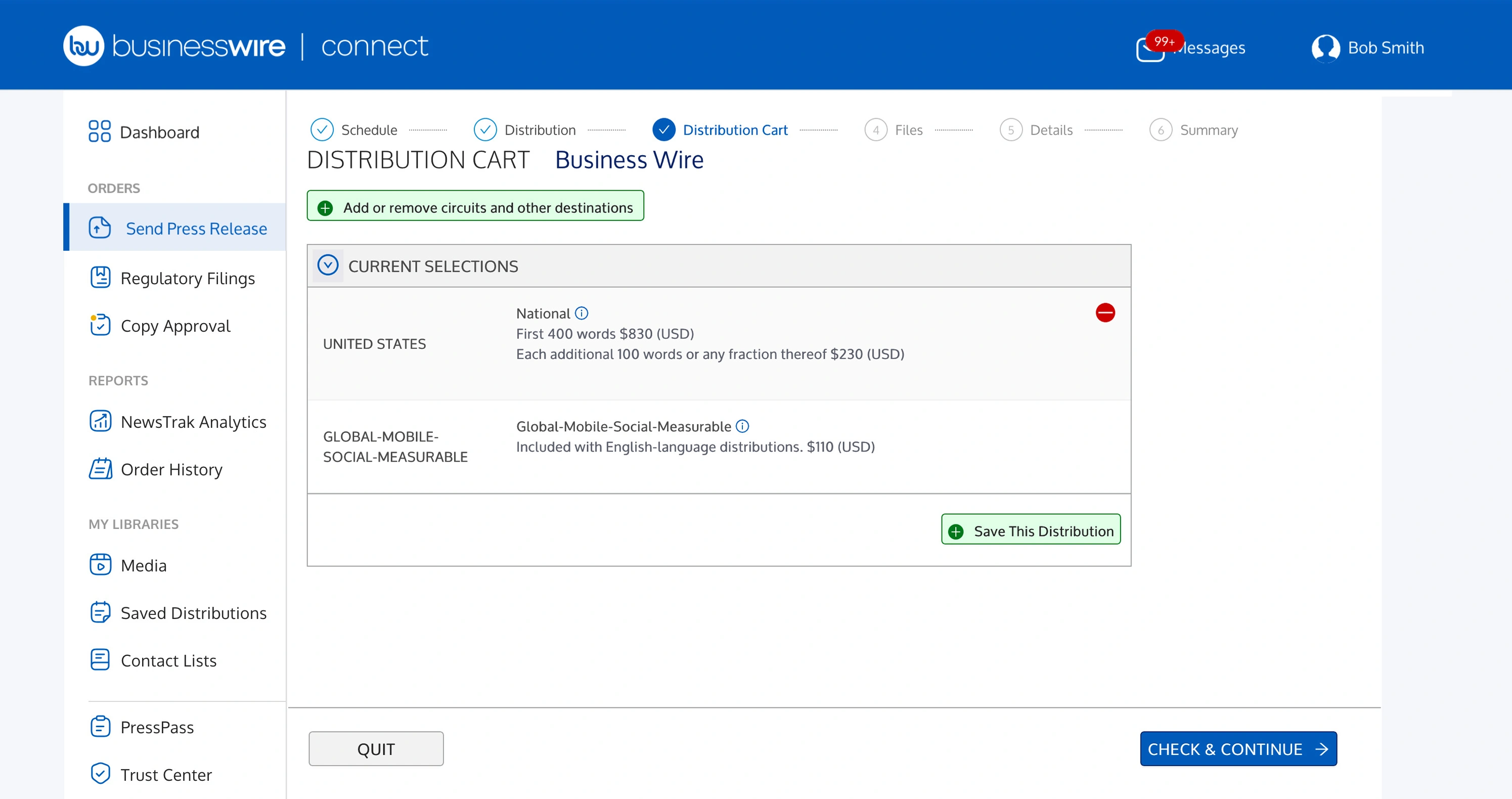
Review your press release distribution order, confirm, or edit your distribution selections. Delete a circuit by clicking the red button.
Click “Save This Distribution” to save this specific circuit selection for future use. (Once saved, it can be shared with others in your organization or kept private.)
When you’re ready, click “Check & Continue.”
6. Files: Upload Release, Multimedia, Filings
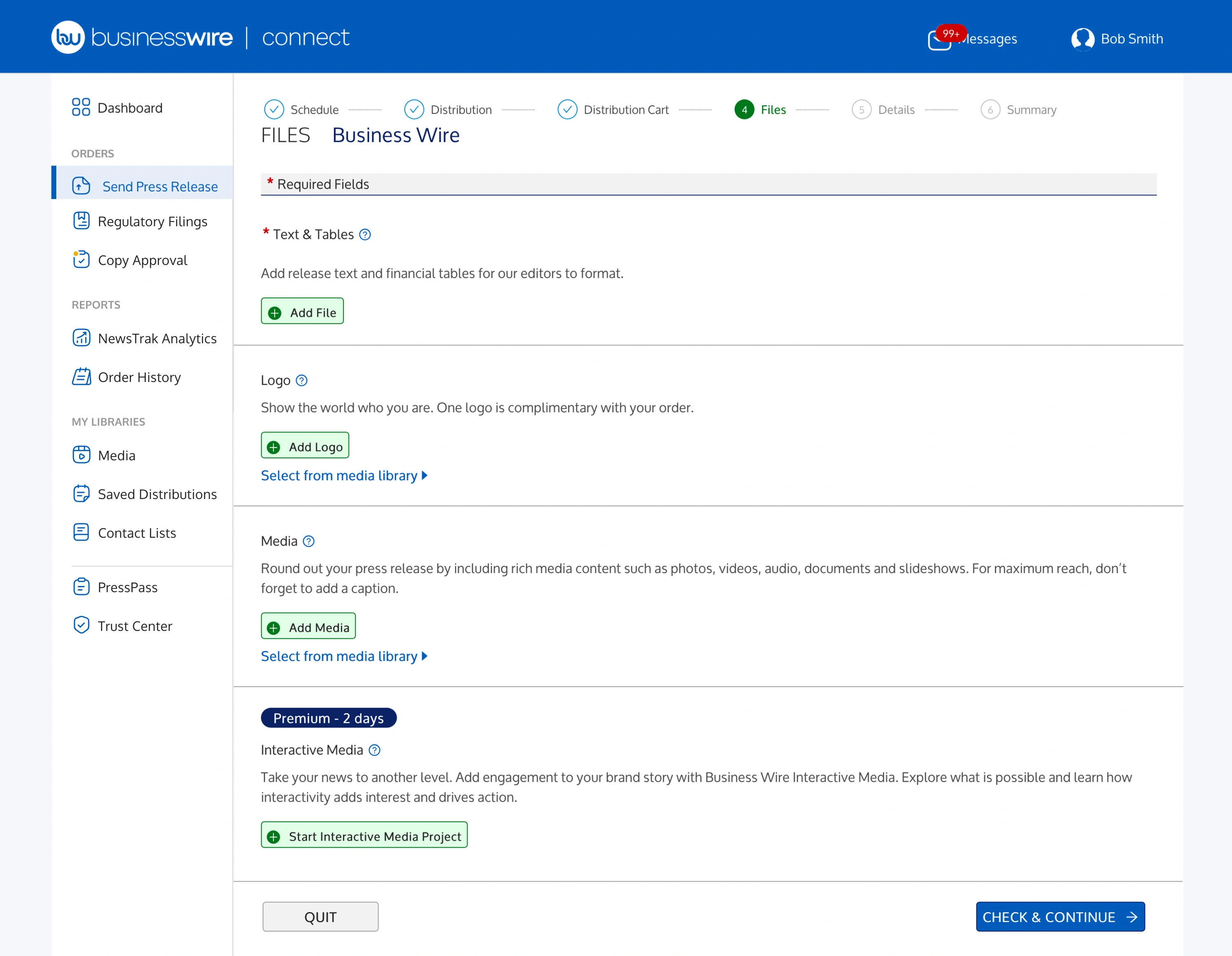
- Text & Tables: Upload your documents and spreadsheets (financial tables).
- Logo: Add visibility to your brand by including your company logo and URL (your company’s logo is complimentary).
- Media: Add images, videos, GIFs, audio files, PDFs, and other supporting documents to amplify engagement and increase shareability.
- Caption: Include descriptive captions for all multimedia to encourage engagement and enhance pickup. Credits/sources of images should also be placed in this field.
- Interactive Media: Let us combine your content pieces to create an engagement-driving interactive media asset.
When you’re ready, click “Check & Continue”.
Accepted file types:
- Photo/Graphic Format: .jpg, .tif, .bmp, .png
- Photo/Graphic Resolution: High-res image preferred; 2,400 pixels on the longer side
- Company Logos: RGB color preferred; minimum 600 pixels on the shorter side
- Audio: .mp3, .aac, .aif, .wma (original digital format, not streaming)
- Video: .mov, .mp4, .wmv, .avi (original digital format, not streaming)
Additional File Formats: .ppt, .pptx, .xls, .xlsx, .cht, .pdf, .doc,. docx, .txt, .rtf, .xml, .xsd (must be evaluated before use)
7. Details and Social Media
Expand each section on this page to add our complimentary social media features designed to increase story awareness and engagement.
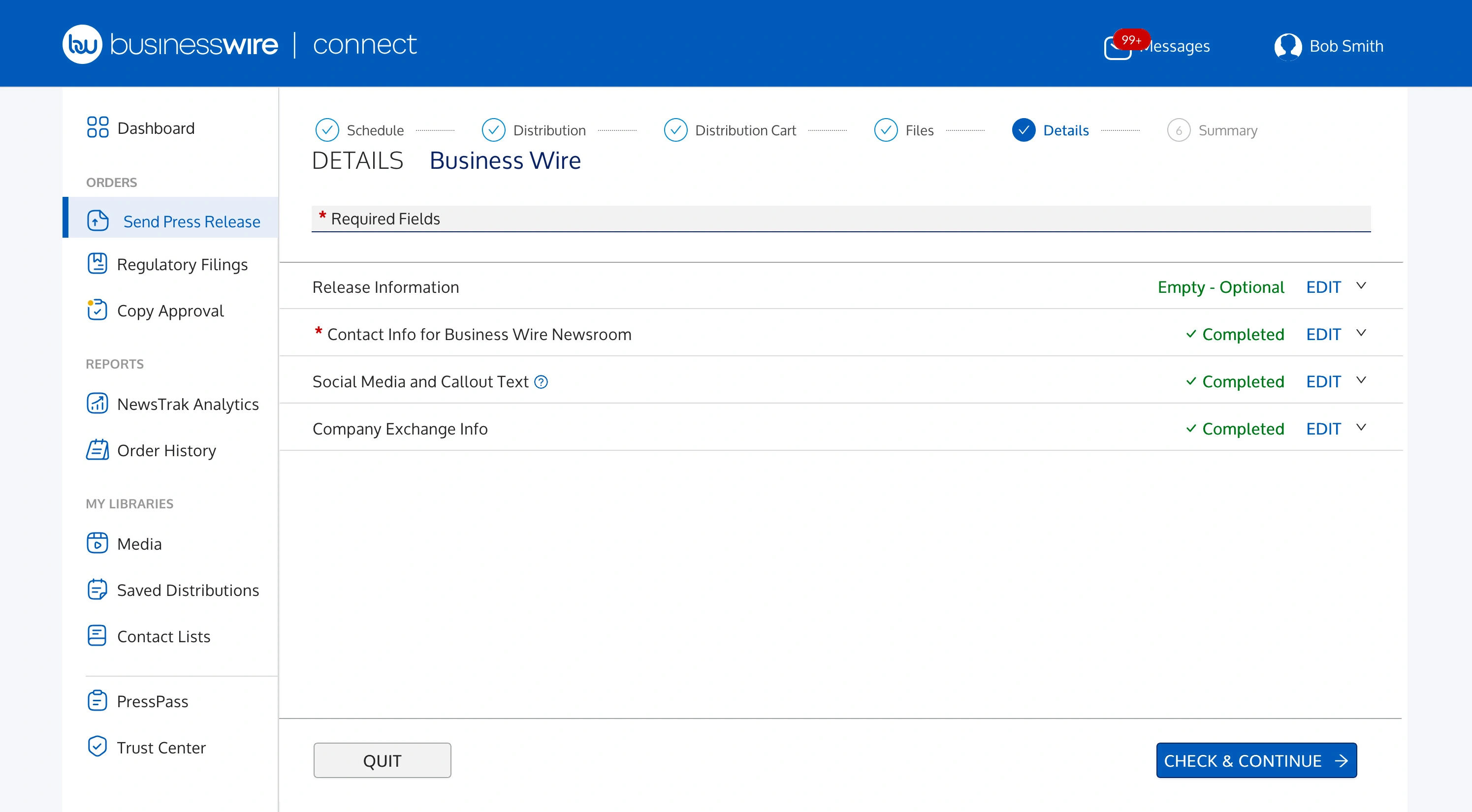
Release Information: Release Summary and Contact Info
Enter any special instructions for our newsroom pertaining to this order.
Add a Purchase order/Client order number (if required by your organization).
Release Summary: Use this section to recap your news in 150 characters or less to increase story comprehension among Media Subscribers and readers.
For our internal use only, include your current contact information so we can reach out to you with any questions related to your order.
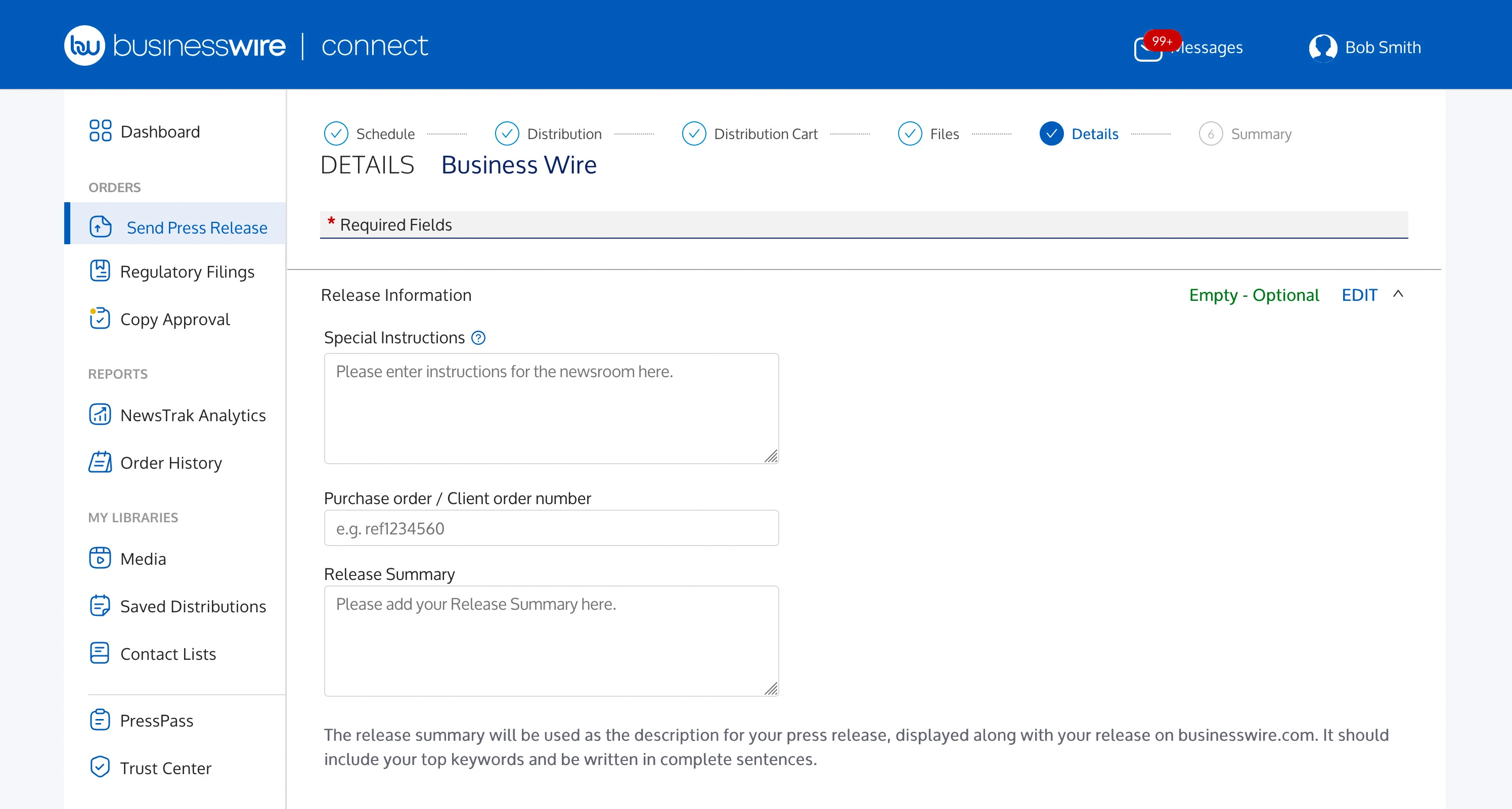
Enhance Your Release with Callout Text
Drive comprehension and advocacy with this design feature. At any time, to save your social media preferences for future releases, click "Save as account default."
- Select your language. Change languages using the Add Language drop-down menu.
- Add callout text to emphasize a key point, quote, or other important information from your press release.
- Click the “Add/Edit Callout Text” button.
- Add the desired text and click “Save Changes.”
- The visual display shows how your choice appears within a published press release.
Callout text can be shared to X from your press release with the click of a button, enhancing the reach of your news.
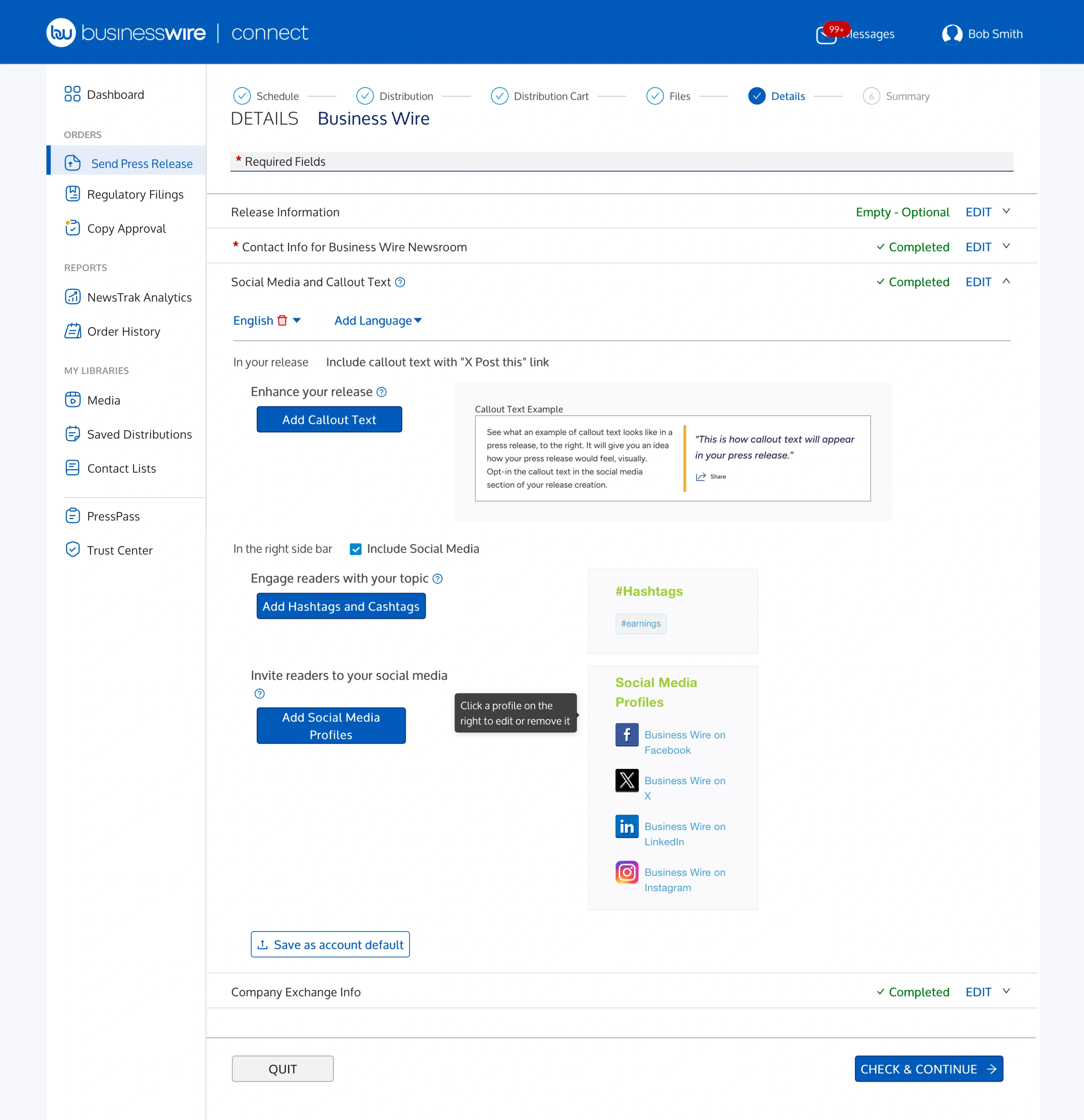
Customize with Hashtags and Cashtags
To support the reach and engagement of your news on social media, fill out the information in the Include Social Media section. If you do not want to utilize these features, uncheck the box and move to the next section.
Add relevant Hashtags (#term) and/or Cashtags ($ticker) to tie your press release to larger industry stories on Twitter.
Click "Save Changes."
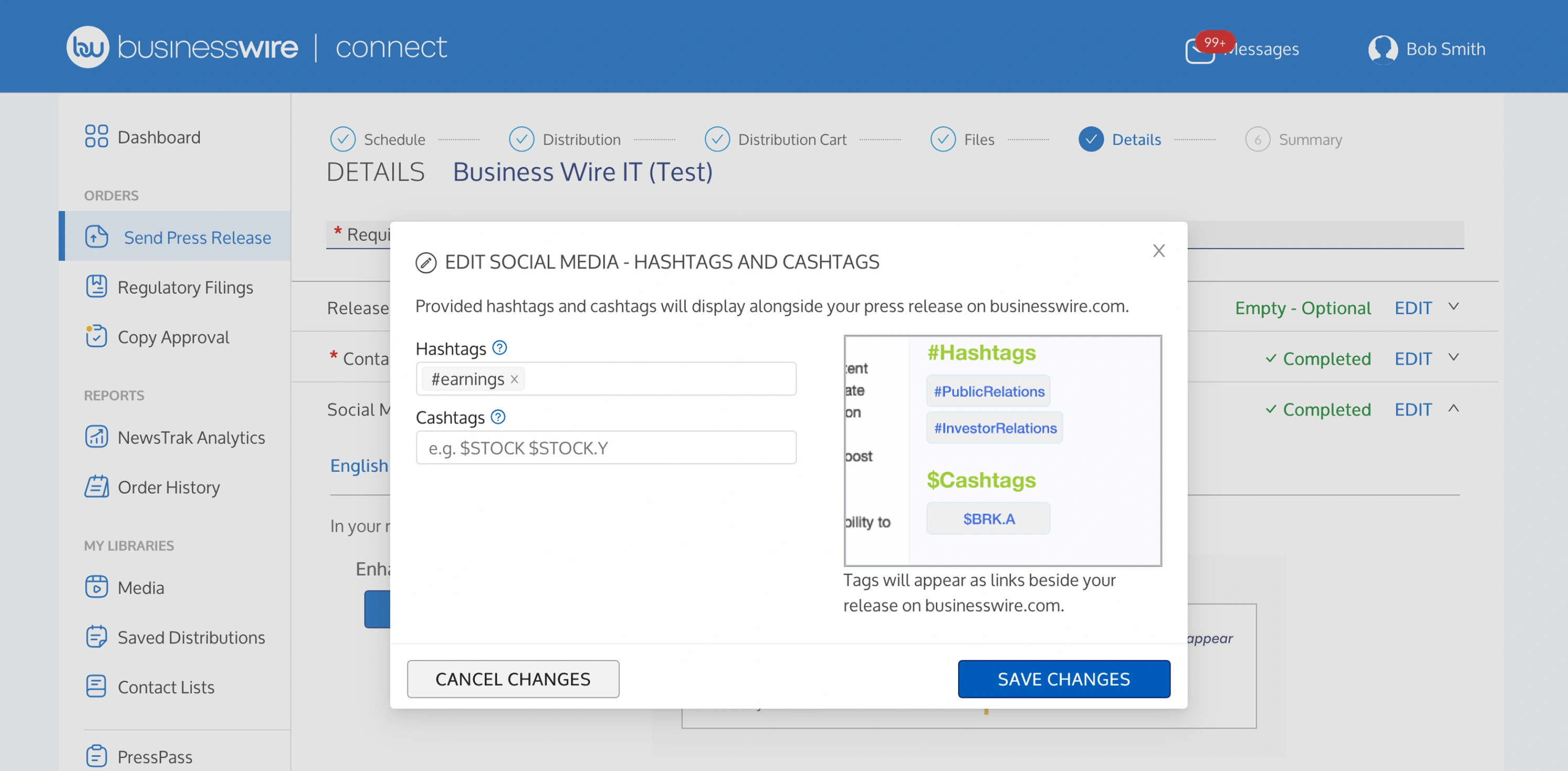
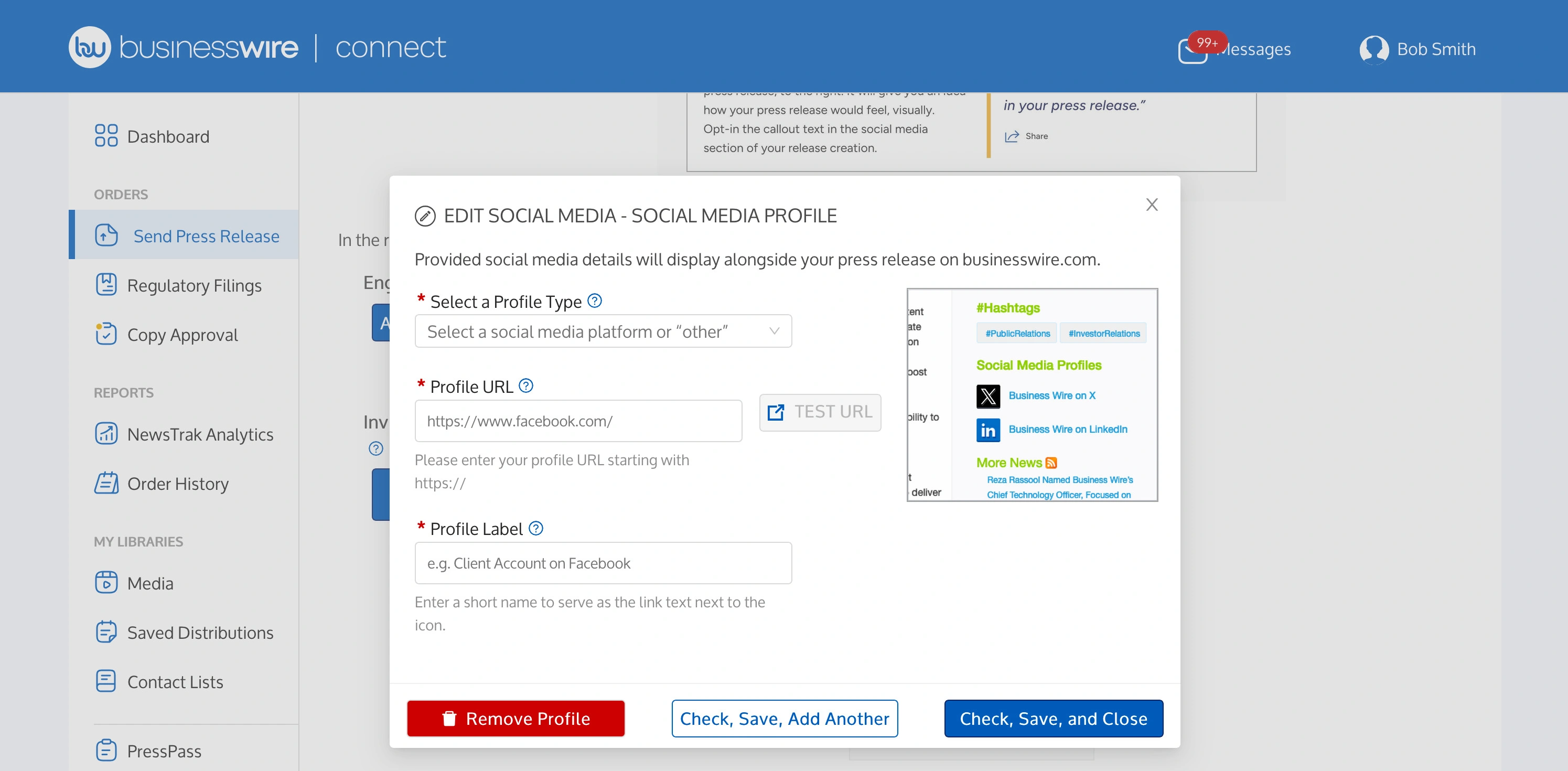
Add Links to Your Social Channels
- Increase channel engagement by adding social channels to the press release sidebar.
- Click "Add Social Media Profiles" to add links to your social channels, displayed alongside your press release.
- Use the drop-down menu to select and add each social channel. Select "Other" to add social networks or platforms not listed.
- Add your social channel URL and preferred display name and click "Test URL" to check accuracy.
- The visual display will showcase an example of how channels appear alongside a published press release.
- Click "Check, Save, Add Another" to add additional channels.
- Click "Check, Save, and Close" to include these channels in this press release.
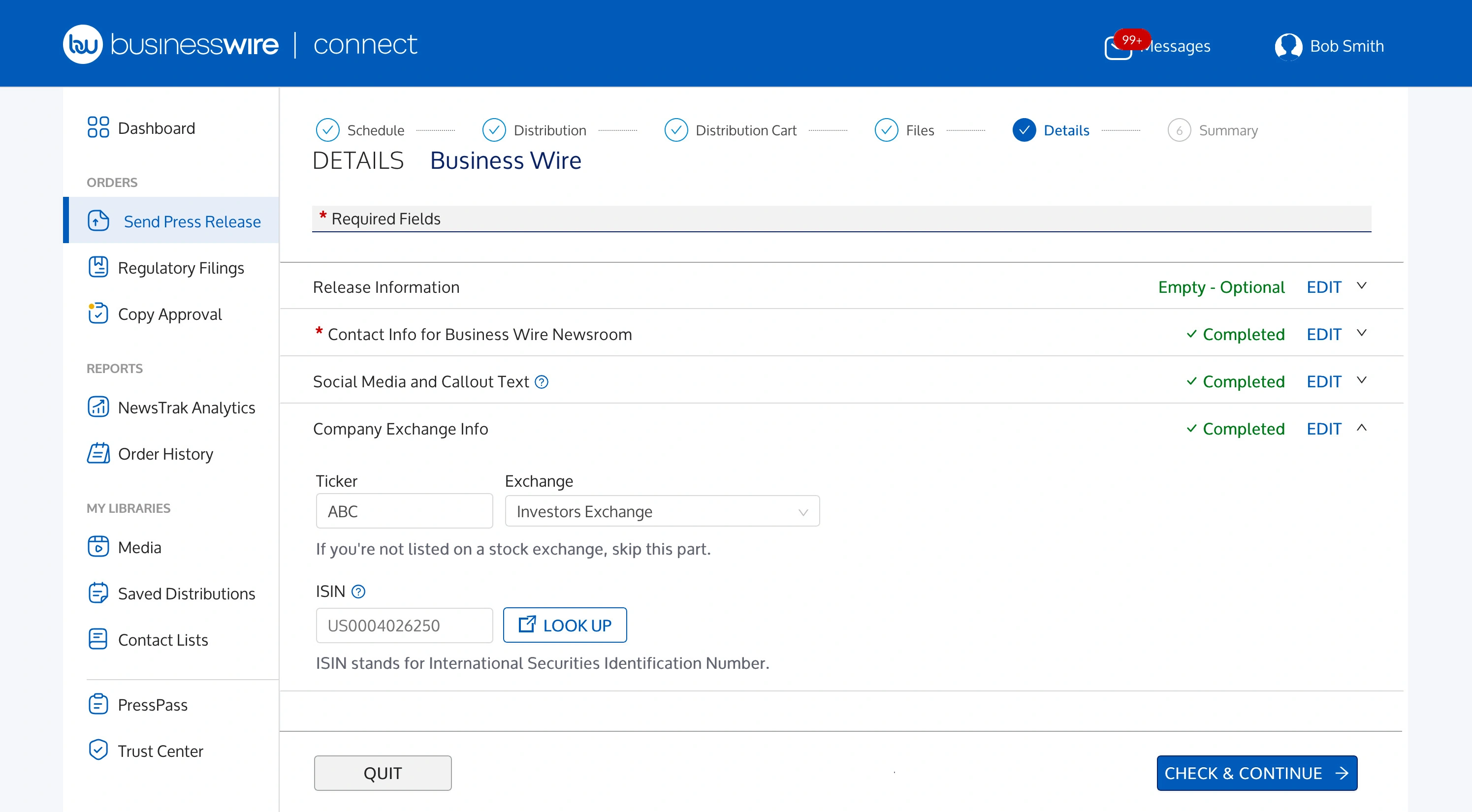
Company Exchange Information for Publicly Traded Companies
Click "Company Exchange Info" to include your ticker symbol, select your exchange, and add your ISIN number.
Once completed, click “Check & Continue."
8. Review and Submit
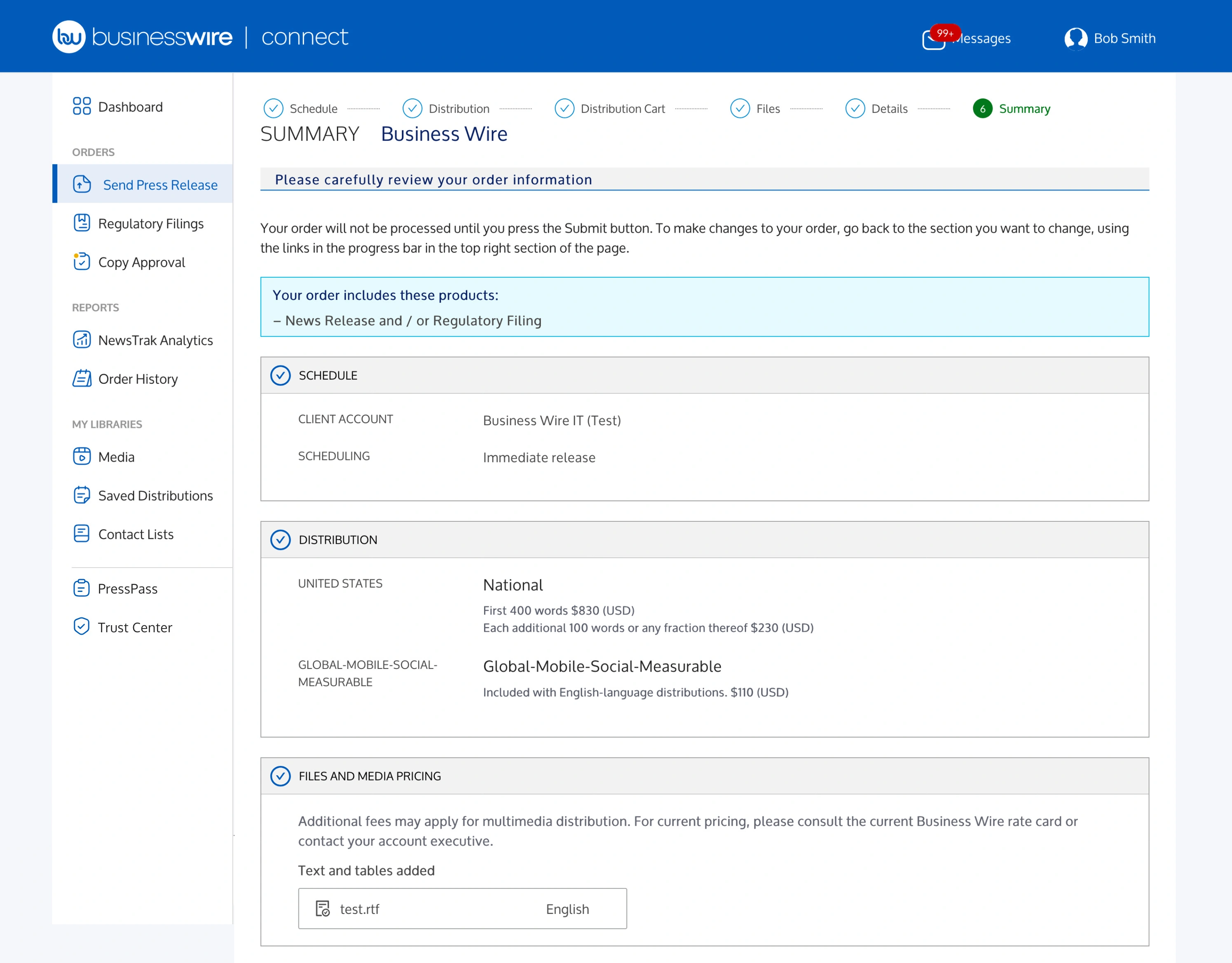
The Summary page is your opportunity to review your press release order, including which materials have been uploaded, multimedia, captions, and more.
To complete your submission, check "I Accept" and click "Submit."
If you have selected Copy Approval, you will receive an email when the formatted press release is ready to review within Business Wire Connect.
Please remember: we will not distribute your press release until you approve your release and confirm your scheduling details.
9. How to Access Copy Approval
If you have selected Copy Approval for your press release, you will receive an email when your formatted press release is ready for review in Business Wire Connect. We will not distribute your press release until you approve your release and confirm your scheduling details.
Please note, only the person who submitted the order via Business Wire Connect can access the formatted press release on the Copy Approval page.
From your notification email:
- Click “View Messages for Order” to be redirected to Business Wire Connect.
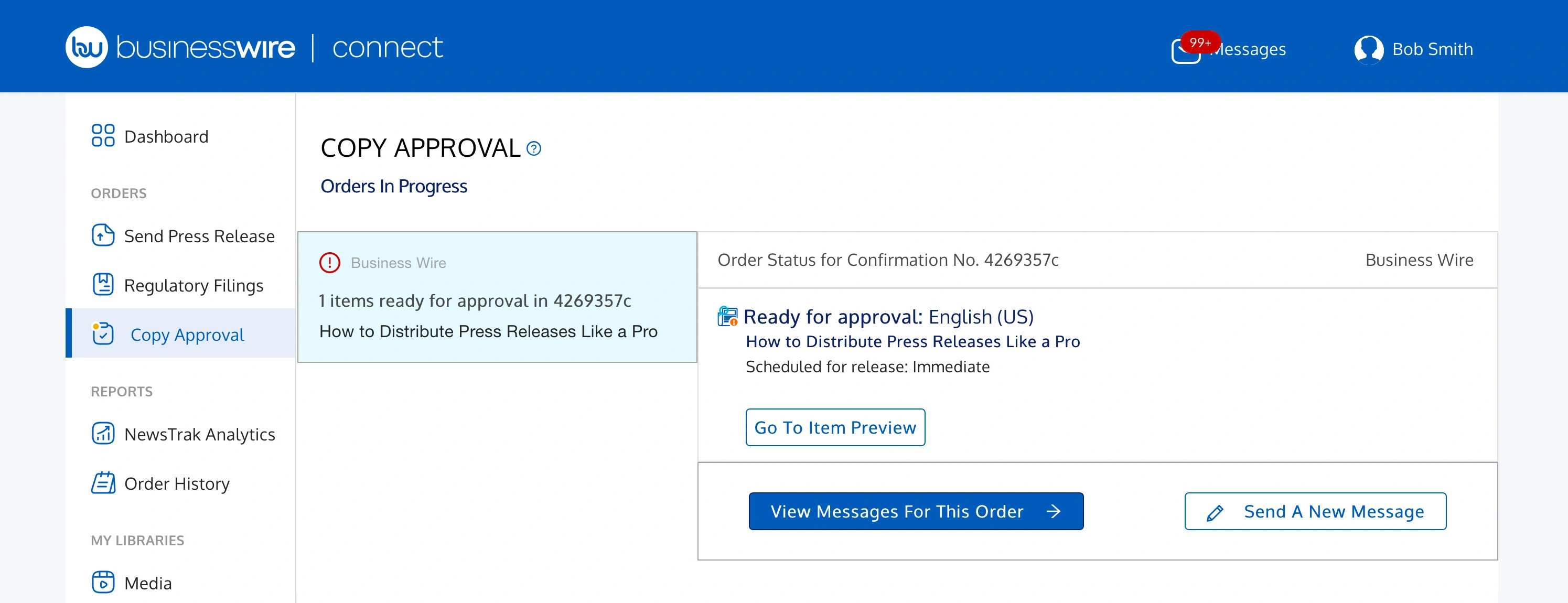
- Once logged in, you will see a notification that your order is ready for review.
- Click "Copy Approval" from the left menu.
- Click the message to open the items ready for review.
- Click "Go to Item Preview" to open the release.
To save a PDF version of your release: After clicking “Go to Item Preview,” click “Print Preview” in the top right corner of your screen. A pop-up window will appear. Select your preferences and save to the destination of your choice.
Approving Multiple Versions of the Release
If you requested Copy Approval for multiple translated versions of your release, you will see all available versions listed under your approval.
As part of Copy Approval, each version must be viewed and approved or rejected separately. Once approved, you will be prompted to reconfirm your distribution date and time.
Click "Go to Item Preview" to open the release.
How to Accept or Reject the Release
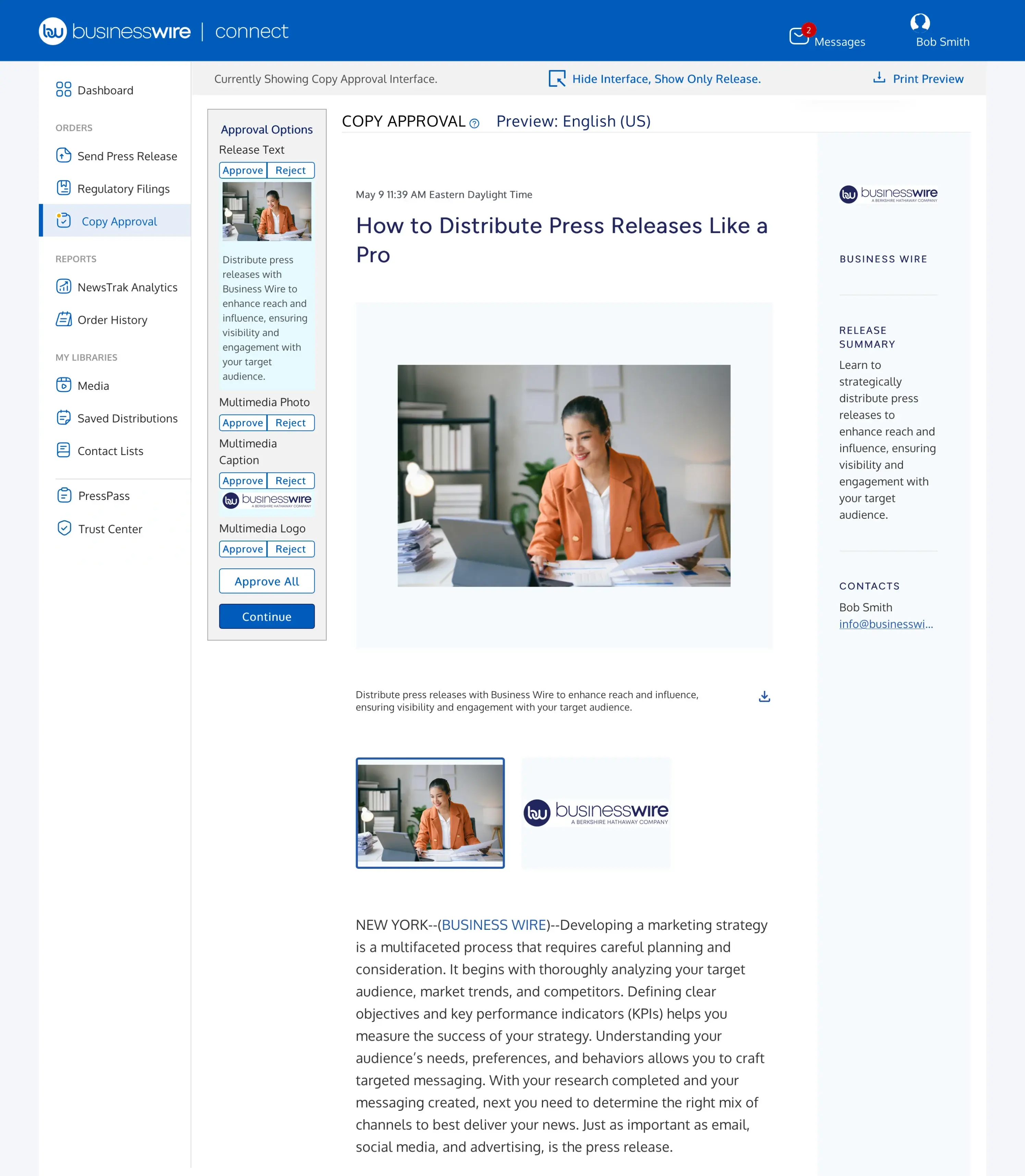
Once the release is opened, the left panel lists the elements of the release for your review, including release text and multimedia. Each element must be approved or rejected individually, or you can approve all elements at one time.
If you have translated content, you will need to follow these steps for each language version of your press release.
- To approve an element, click "Approve" underneath that item. The approve button will turn blue.
- To approve the entire release, click "Approve All."
- To edit the release, click "Reject." The reject button will turn red.
Once rejected, a pop-up box will appear for you to explain what changes need to be made. Enter your changes and click “OK” to submit the changes.
Click "Continue" to finish reviewing the release.
If you approved all components of the release, you will be asked to confirm or update the Scheduling options for this release. This must be done before Approval is complete.
Once you complete these steps, a notification will be sent to Business Wire’s editorial team.
If revisions were requested, the editorial team will send the release back to you to review the changes. Follow the above steps to approve or reject the next version.
Copy Approval Round Two
When a second set of revisions is requested, you can view the release edits made by selecting “Show Changes.”
Click "Approve/Reject."
Once completed, click "Approval All" and "Continue," then confirm or update the release timing.
10. Contact
For general assistance with your account, please give us a call or visit this page for more information.
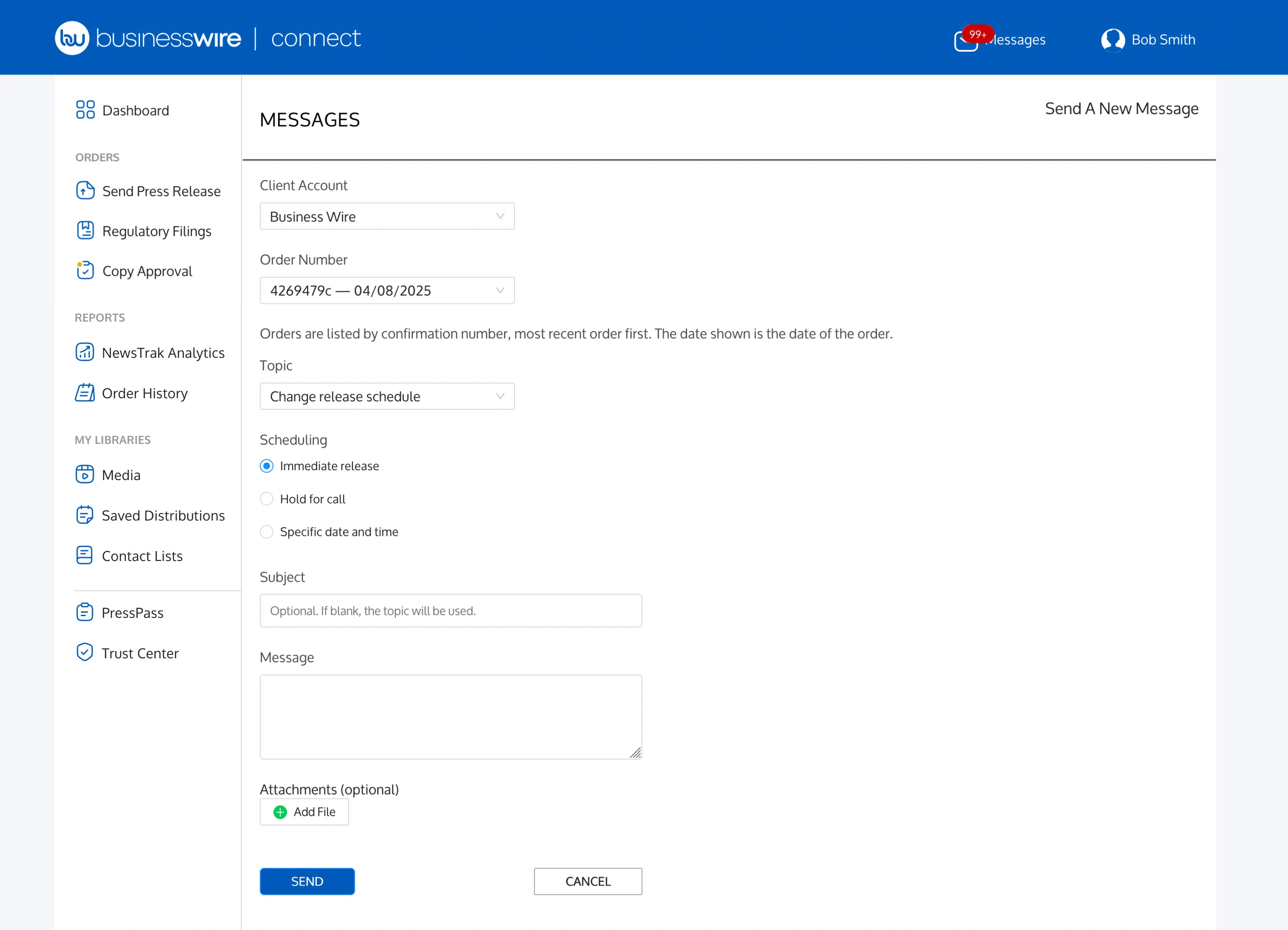
If you need assistance with a press release order, you may call or send the newsroom team a secure message.