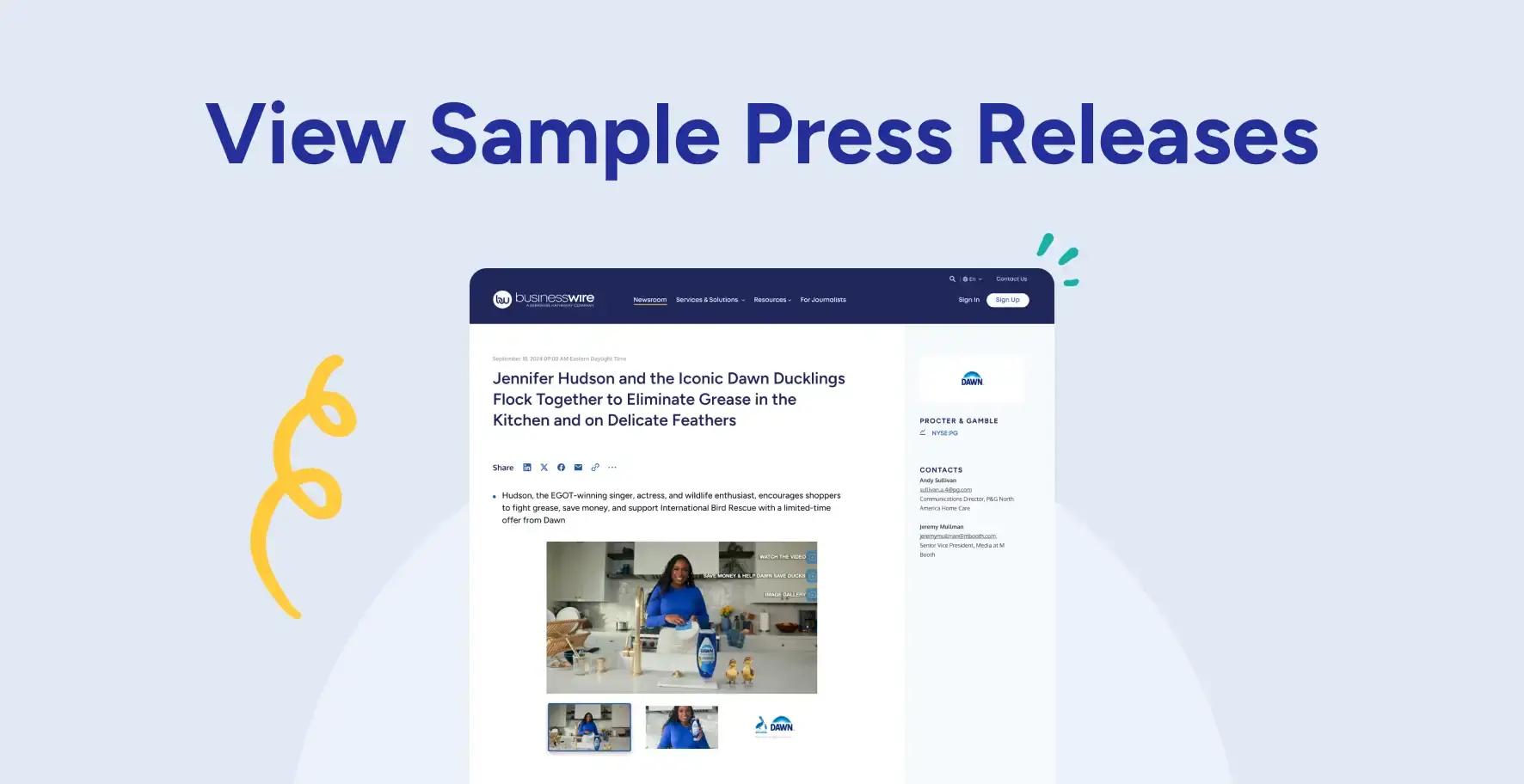
We turn your existing content into a reusable interactive media package that invites viewers on an engaging, click-through journey. Simply share your news release, along with any photos, videos, PDFs, links, and more, and we'll create a dynamic visual asset. Each hotspot reveals additional content or visuals, helping your audience interact with your story and take action.
Gather Your Content
Pull together your files. These could include images, videos, GIFs, logos, PowerPoint files, website and landing page URLs, social profile, and any other content you’d like included in your Interactive Media release. If you’re issuing a translated BWIM, please provide your final, proofed translated text and content.
Designate an anchor file. An anchor file is the base image or video used in an Interactive Media asset. An image works best; if you opt for a video, :30-45 seconds is ideal. Once the asset is live, this file cannot be updated. Be sure to choose the most optimal file to serve as your anchor file, which will act as the foundation for your Interactive Media asset.
Not sure what to gather or which item to select as your anchor file? No problem! Continue on in this process and the Design Desk can help you.
File & Content Tips
- Your anchor image should be landscape or horizontal and 16:9 or at least 2400 pixels lengthwise. We recommend going with the highest resolution possible.
- Optimal color mode: RGB or Greyscale.
- Image file types supported: JPEG, GIF, flattened PNG.
- Video file types supported: MP4, MOV, FLV, AVI, WNV.
- Hotspots can contain a gallery of images, videos, infographics, press release text, URL links, and more.
- Images perform better than video.
- Only have text-based content? The Design Desk can turn blocks of text into overlays!
- Include logos and URLs to key landing pages.
Log in to Business Wire Connect
If you have a Business Wire Account, log in.
If you need access to your organization’s account, please contact your internal account administrator. If your organization does not have an active Business Wire account, sign up.
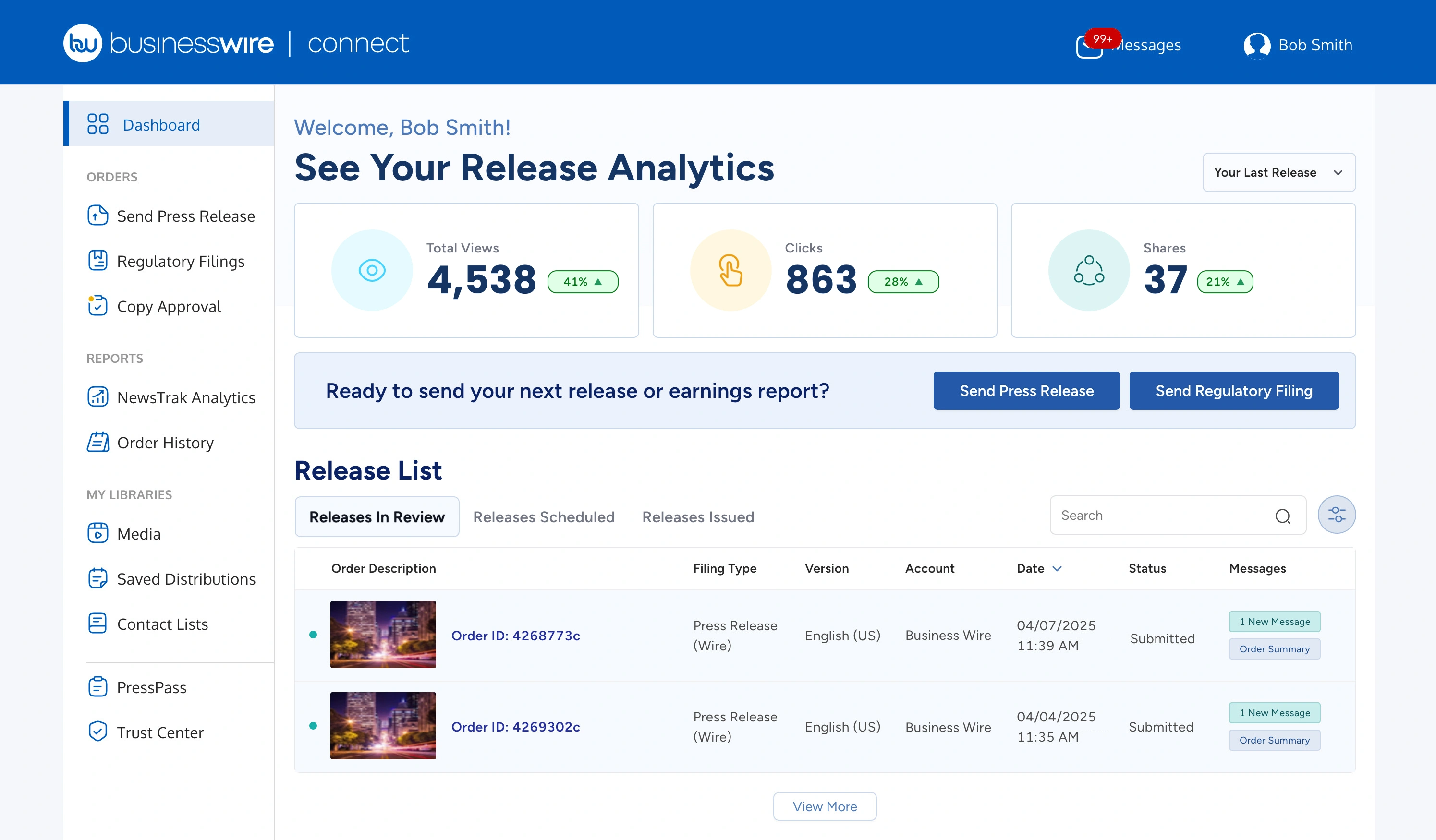
Start Your Order
If you need help starting or scheduling your order, or selecting your distribution list(s), visit the Business Wire Connect Quick Start Guide.
Note: Each Interactive Media project includes distribution to one country-wide circuit of your choice.
Upload Your Files
Collect your news release, multimedia assets, and your anchor file. If your anchor image is not ready, or you’re not sure which files you want to include in your Interactive Media release, you can still move forward. Anything not provided in Connect can be shared with the Design Desk later.
After you’ve entered the date and time you want your release to go out and determined your distribution details, it’s time to upload your files.
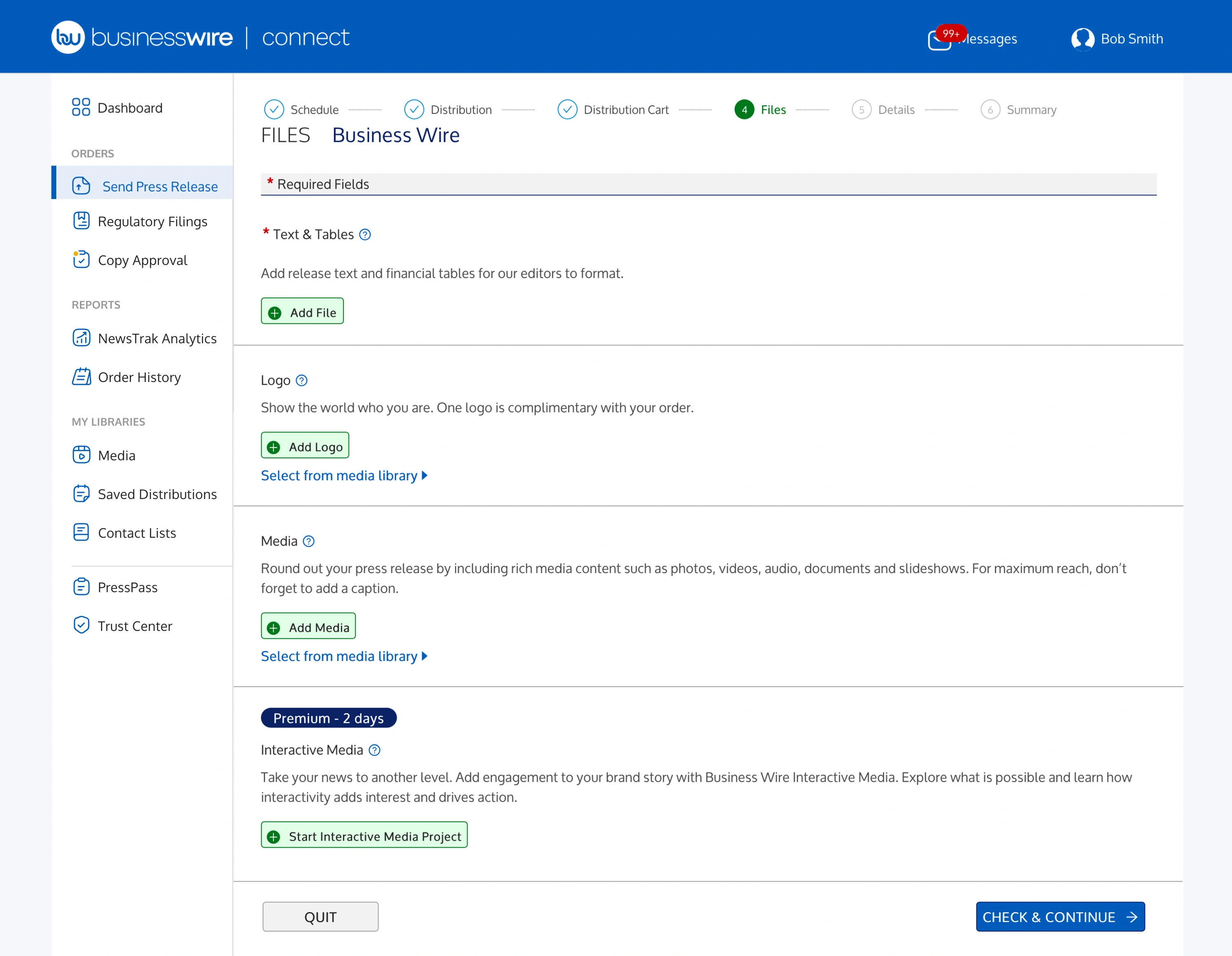
- On the Files tab in Business Wire Connect, add your press release text (in a Word document) by clicking “Add File.”
- Next, add your company logo by clicking “Add Logo.”
- Under Media, upload the multimedia files that will be used to create your Interactive Media asset by clicking “Add Media.” Your anchor file will be added in the next step.
- Lastly, under Interactive Media, click “Start Interactive Media Project” and upload your anchor file.
Note: You can also choose the “Proceed without Upload” option after designating your anchor file will be an image or video. If you choose this option, you will provide your anchor file during the Interactive Media production process with the Design Desk.
Complete Your Order
After uploading your files, complete your order in Business Wire Connect.
Need help? Follow along in the Business Wire Connect Quick Start Guide.
Hotspots & Overlays
Hotspots are interactive points layered on your anchor file. Hotspots help organize your messaging, as well as drive traffic to your site, campaign page, or social channels.

An overlay is a pop-up window that appears on top of the anchor file after a hotspot is clicked. Overlays display content in a myriad of formats depending on your specifications.
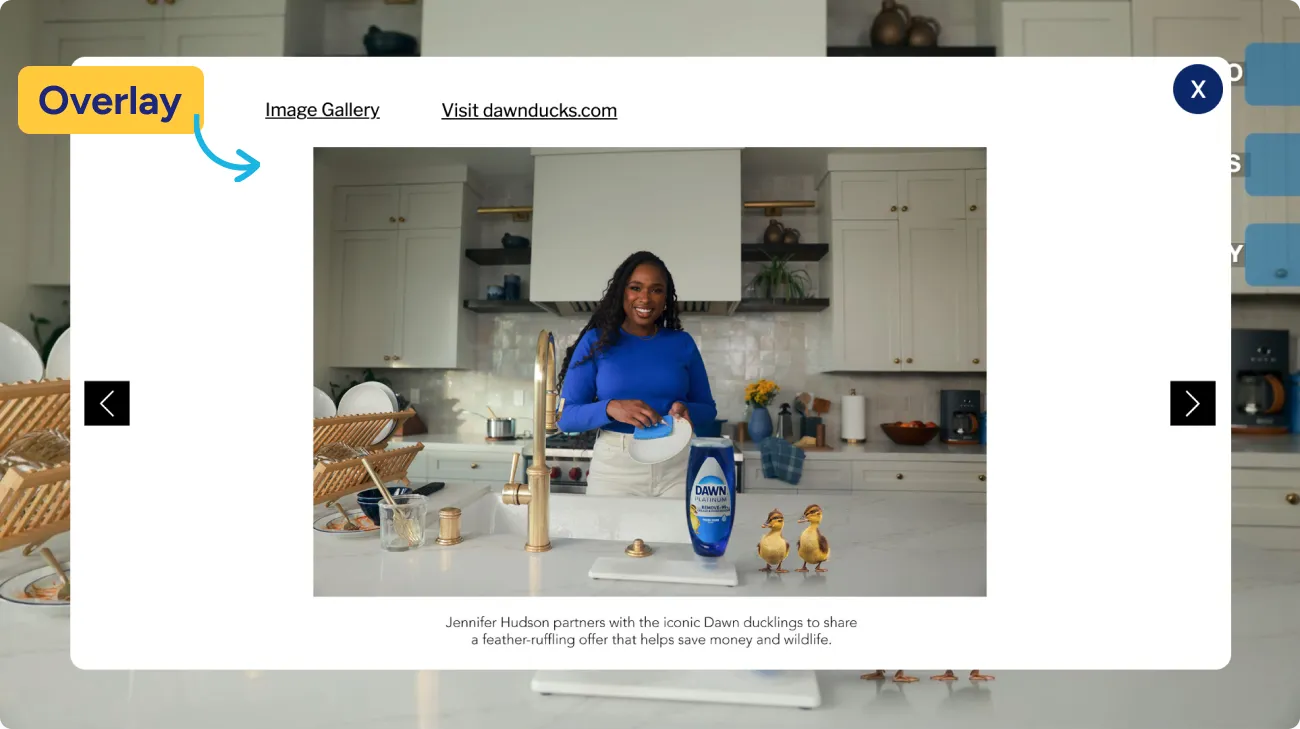
A few tips:
For busy anchor images: Use 1-2 hotspots for clarity.
For anchor images with white or negative space: Use 3-5 hotspots. Clickthrough rates decrease with more than five.
For video anchor images:
- The first hotspot should appear within the first ten seconds.
- Hotspots should remain visible for at least five seconds.
- Hotspots are most often clicked within the first 30 seconds of the video.
You'll collaborate with the Design Desk to determine the best placement and configuration of hotspots and overlays.
We Get to Work
Let us do the rest! Once we’ve determined how your multimedia will be laid out, we’ll create your Interactive Media and share with you for approval.
Please note:
- It’s important for the Design Desk to have all files needed, along with clear instructions, before they can begin building.
- Design Desk does not provide translation services, so if you’re creating an interactive asset in another language, please provide all final, proofed translated text.
- After you submit your order in Business Wire Connect, the Design Desk will email you with questions and provide a link to a shared OneDrive folder to upload any remaining files.
- Your Interactive Media will be approved with the Design team, while your press release will be processed by the newsroom.
Share Your Interactive Media
- Add to your website. Interactive Media displays on most websites/CMS with full interactivity. Get in-depth instructions
- Share on your social media channels.
- Share internally via your intranet or email. This will help with message adoption, plus your colleagues may also share with their own networks.
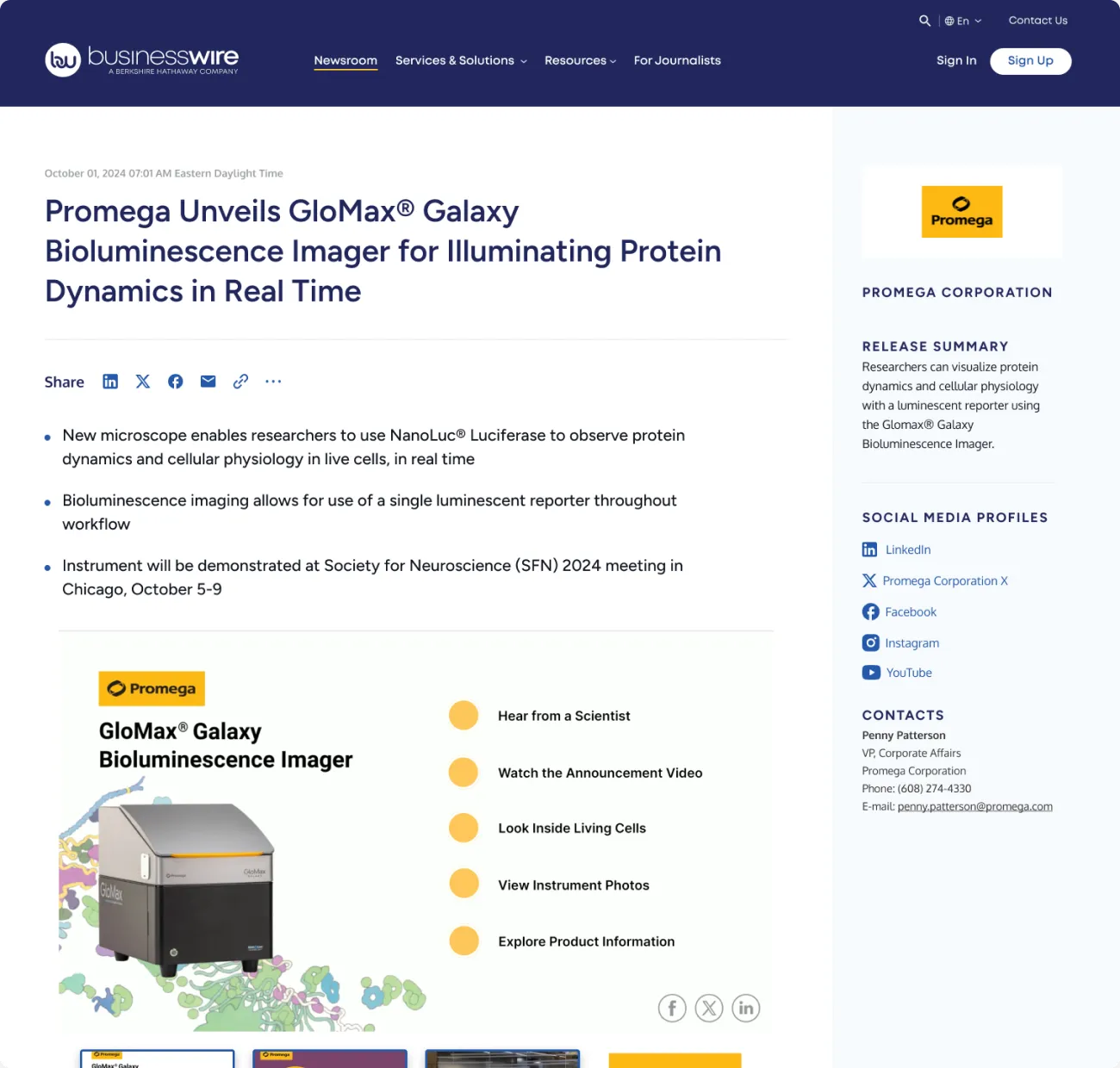
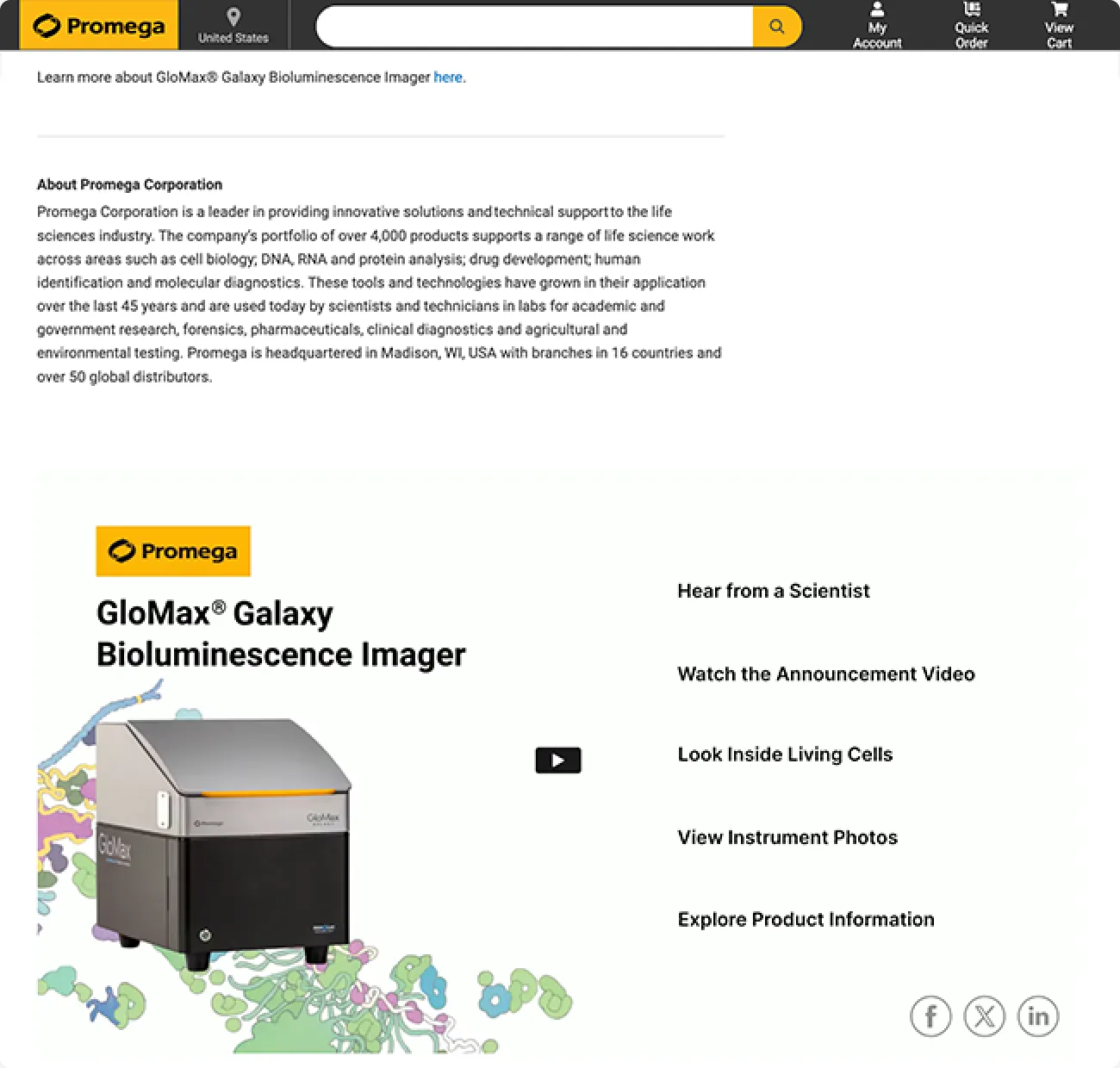
Example from Promega
 |  |
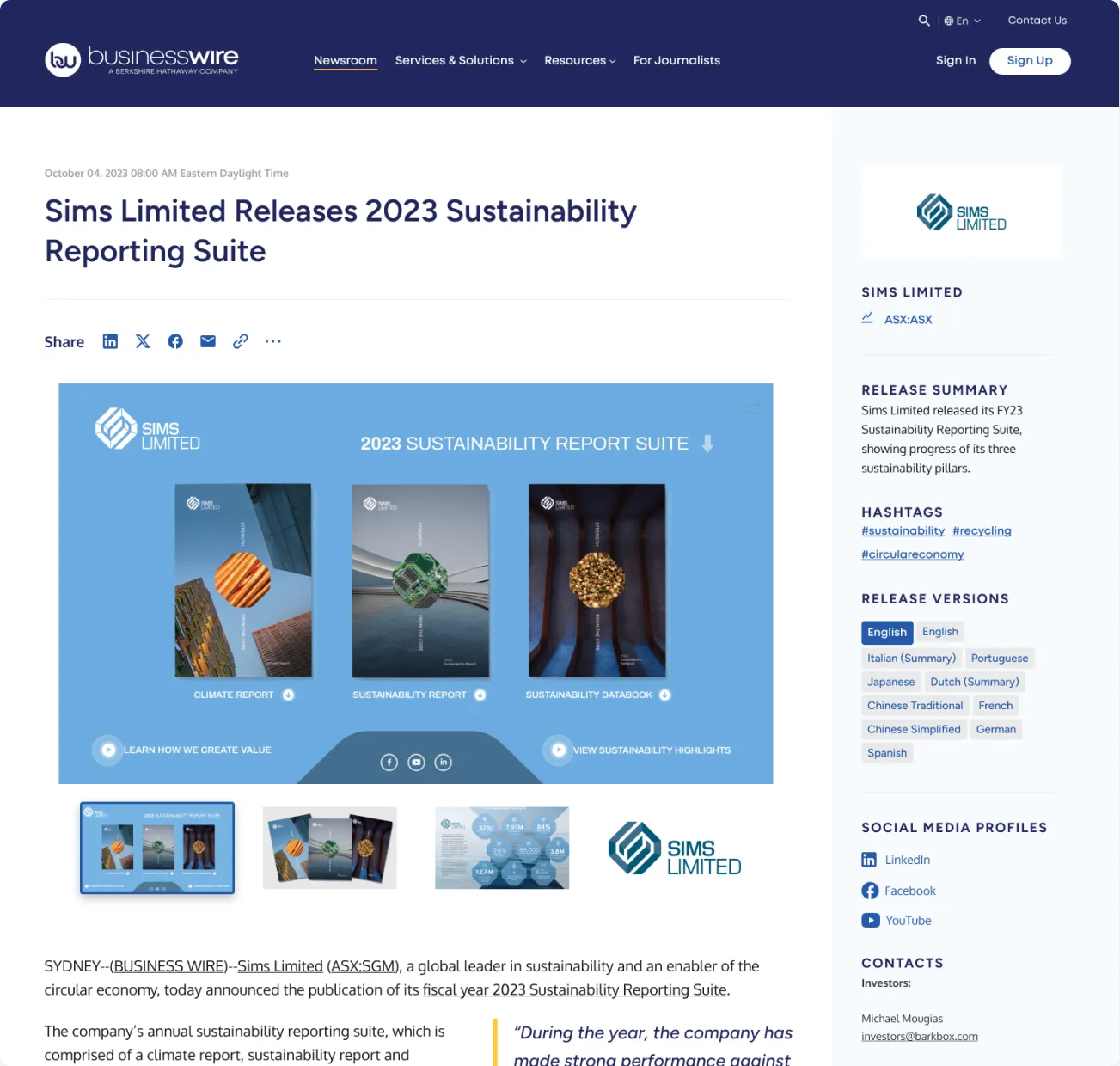
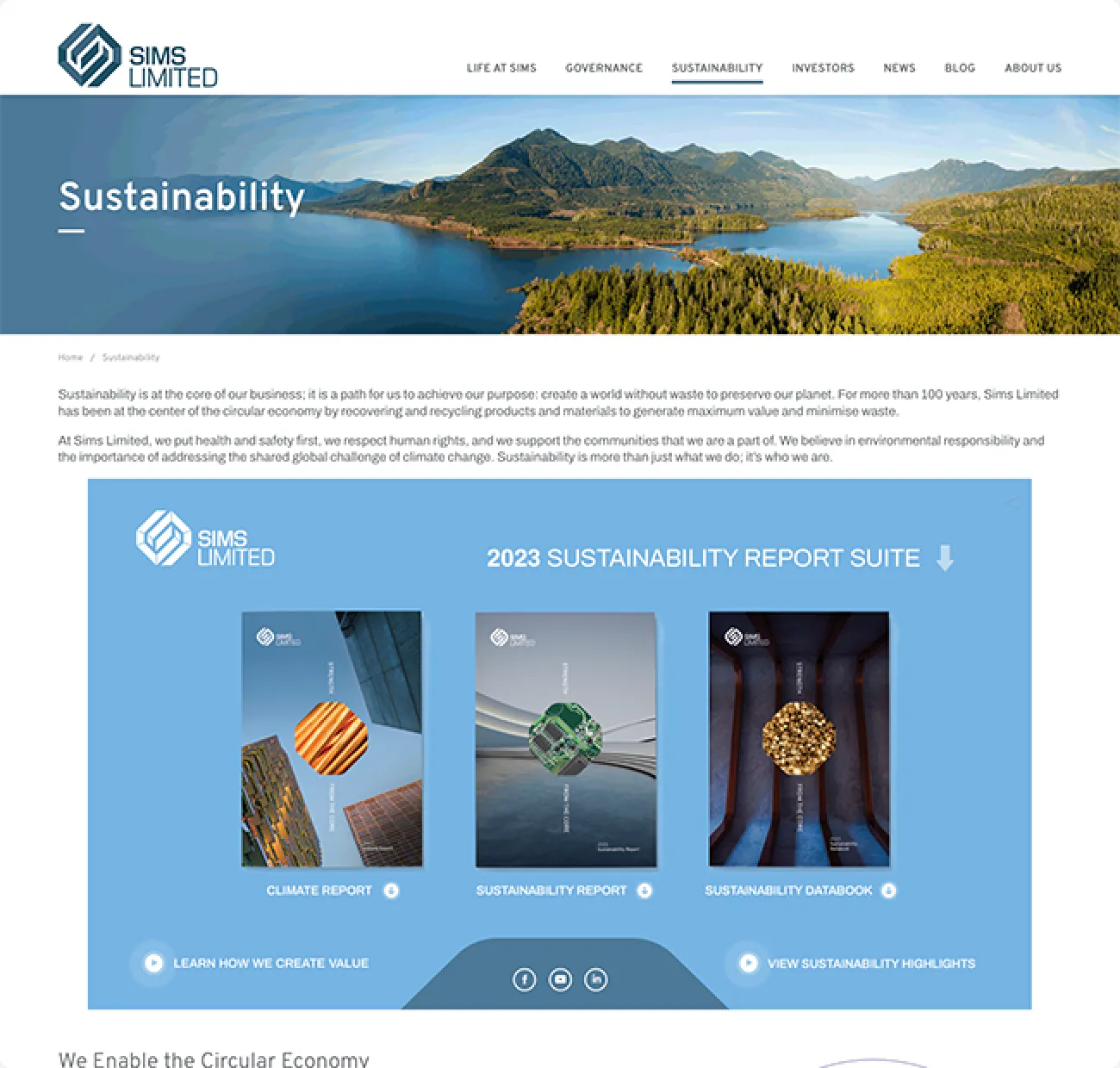
Example from Sims
 |  |